Open your planner from the Home Screen in one tap
Use the Shortcuts app on iPad to open KotaLog Diary straight from a Home Screen icon — with dedicated icons from the Guide page.
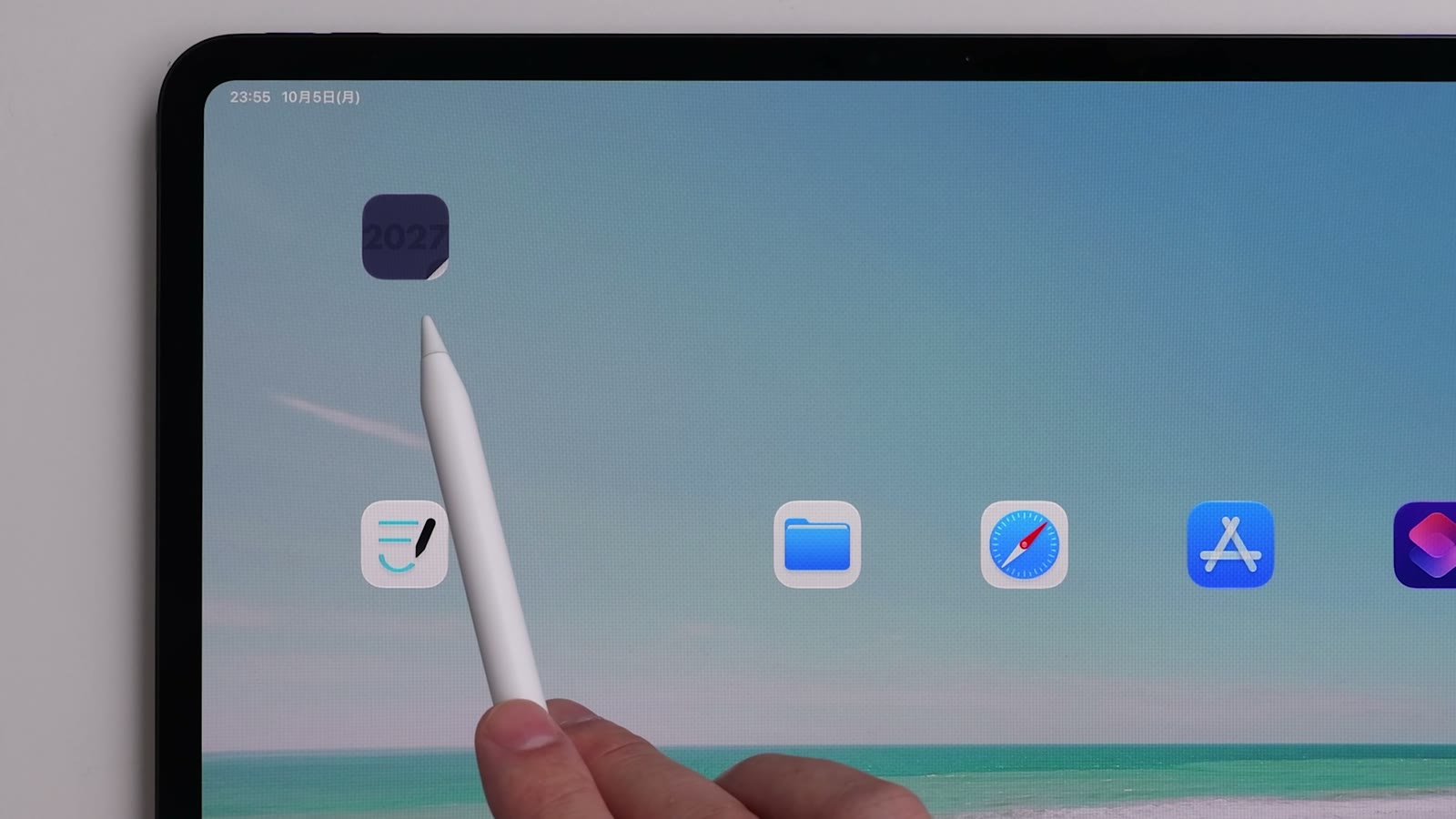
With the Shortcuts app on iPad, you can open KotaLog Diary straight from an icon on your Home Screen. A planner you open every day is easier to keep up with when it’s one tap away. The Guide page even includes icon images for your Home Screen.
This article shows the steps for Goodnotes.
Note: screens and menu names may differ depending on your versions of Goodnotes and iPadOS. The screenshots were taken in October 2026 with the Japanese interface.
Before you start: check your planner’s name in Goodnotes
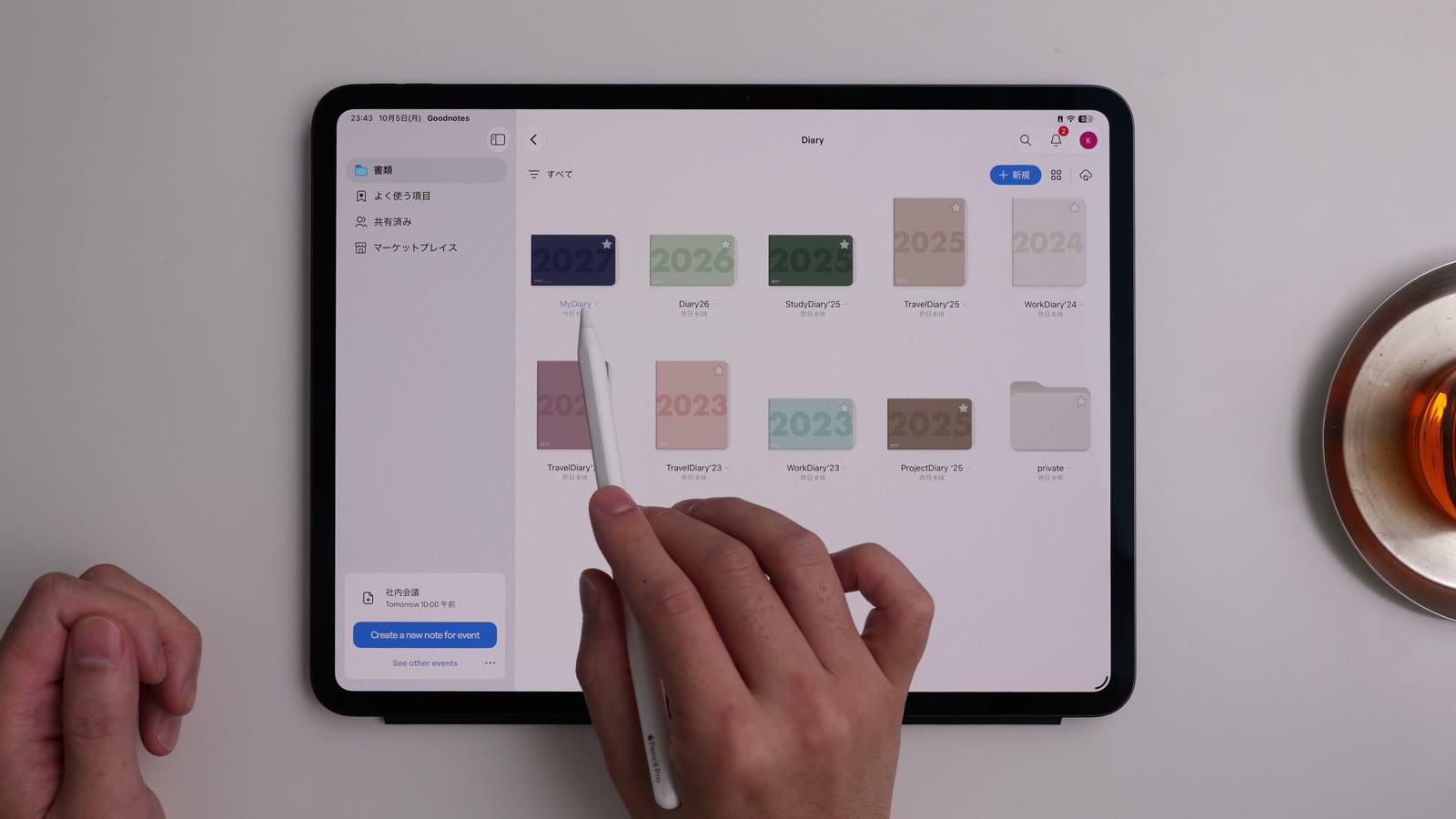
Watch in video26:31The shortcut opens a Goodnotes document by name, so check the name of the planner you want to open. This article uses a planner named “MyDiary” as an example.
1. Save an icon image from the Guide page
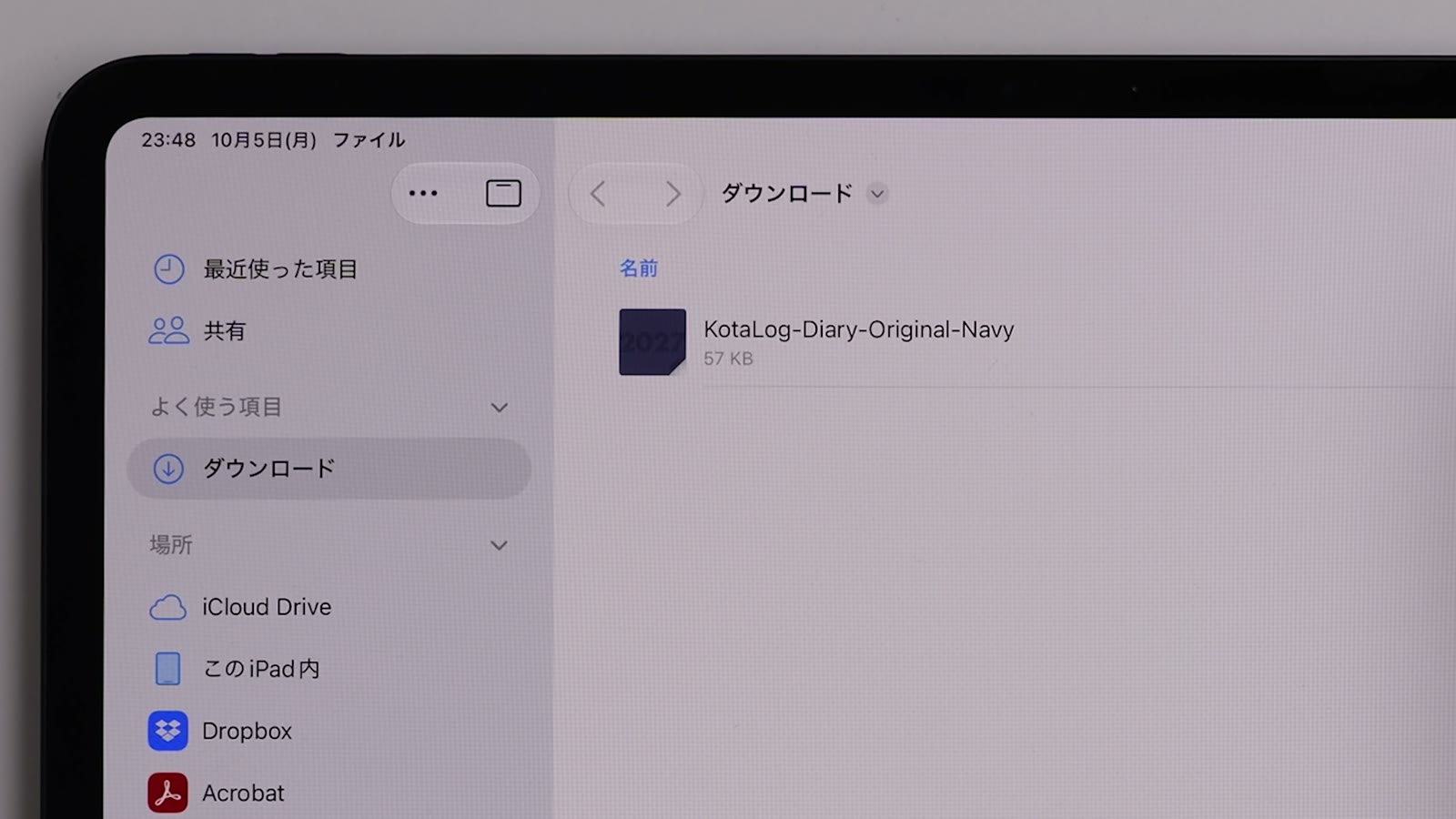
Watch in video26:46Tap an icon image under “Workflow App Icons” on the Guide page to download it. There is a standard icon (Default Mode Icon) and one for Home Screens with icons set to “Clear” (Clear Mode Icon).
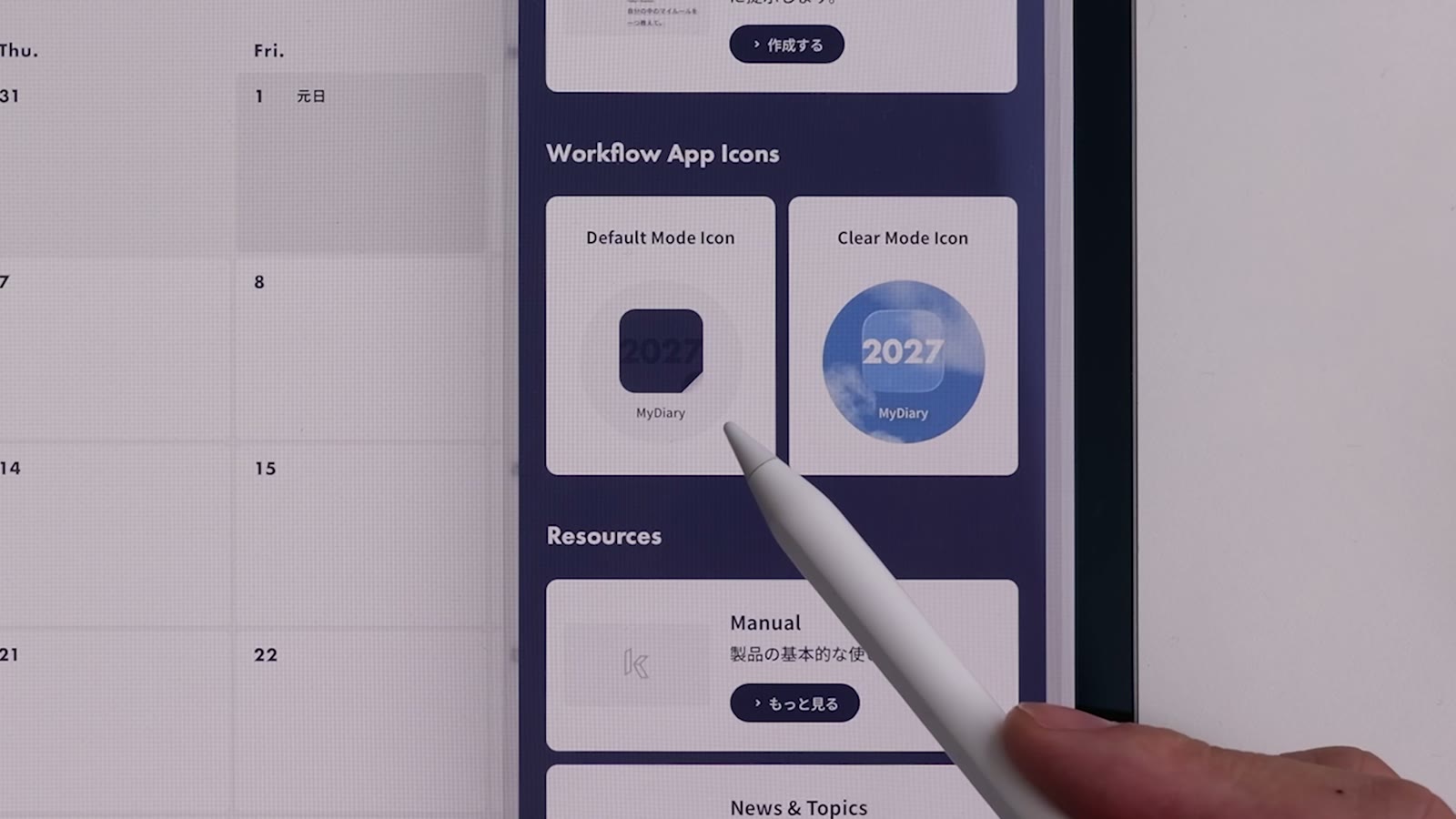
With default settings, it is saved to the “Downloads” folder in the Files app.
2. Create a shortcut that opens your planner
Watch in video27:02- Open the Shortcuts app and tap “+” at the top right of “All Shortcuts”.
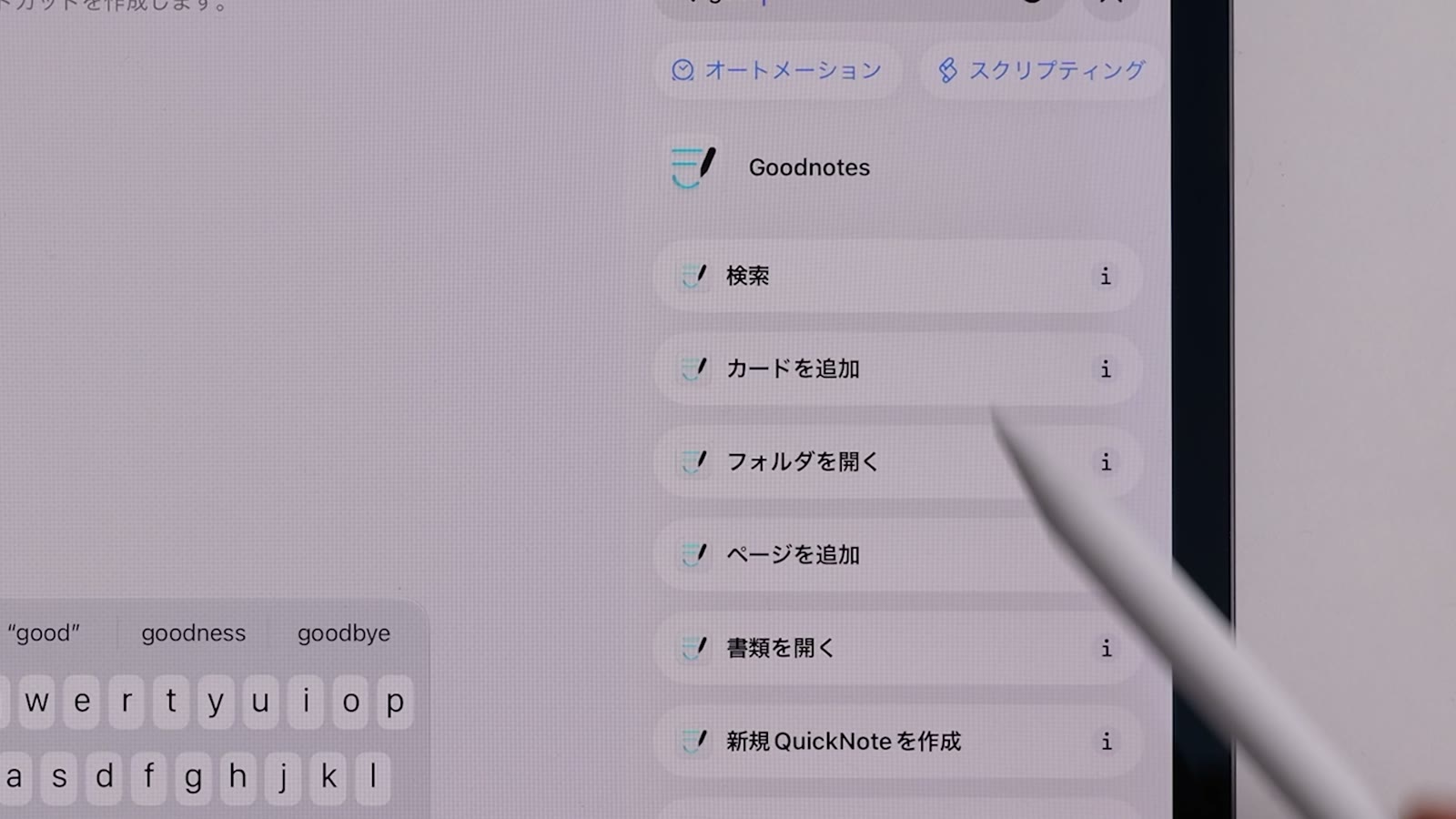
- Search actions for “Goodnotes” and tap “Open Document”.
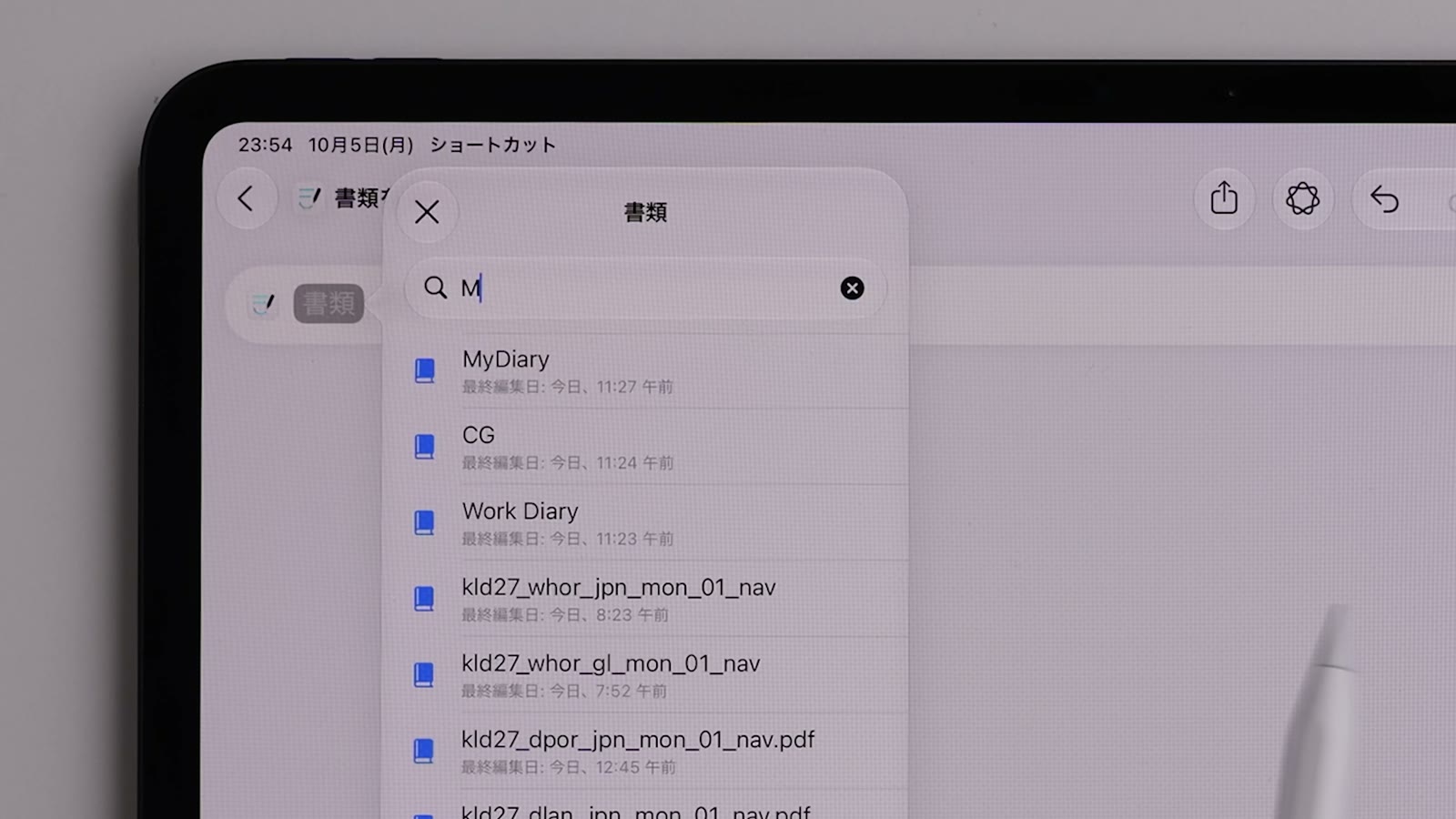
- Tap “Document” in the new action, search for your planner’s name (e.g. MyDiary) and select it.
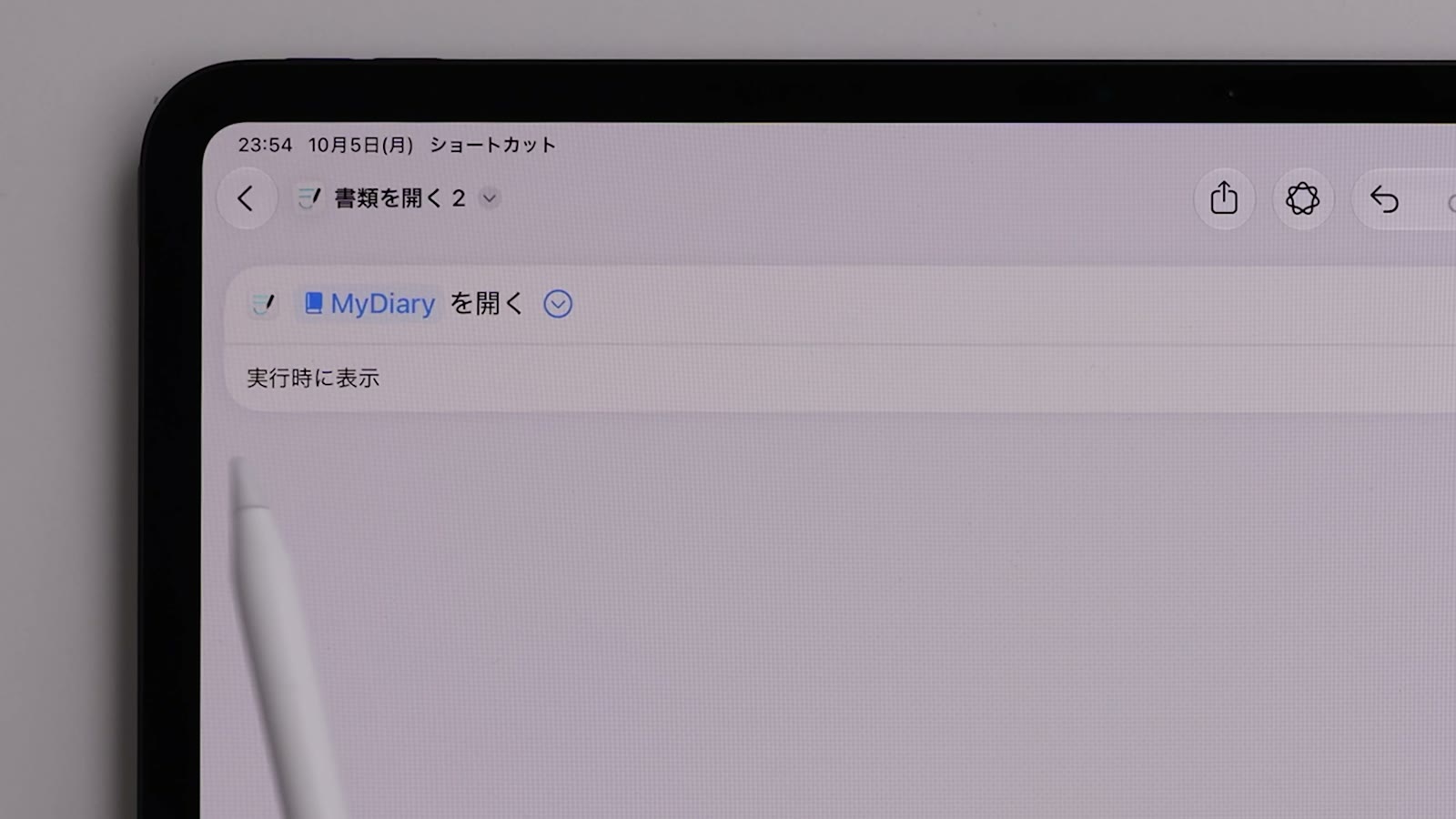
- When the action reads “Open MyDiary”, tap the action’s arrow icon and turn off “Show When Run”.
- Tap the play button at the top right to check that your planner opens.
3. Add it to the Home Screen
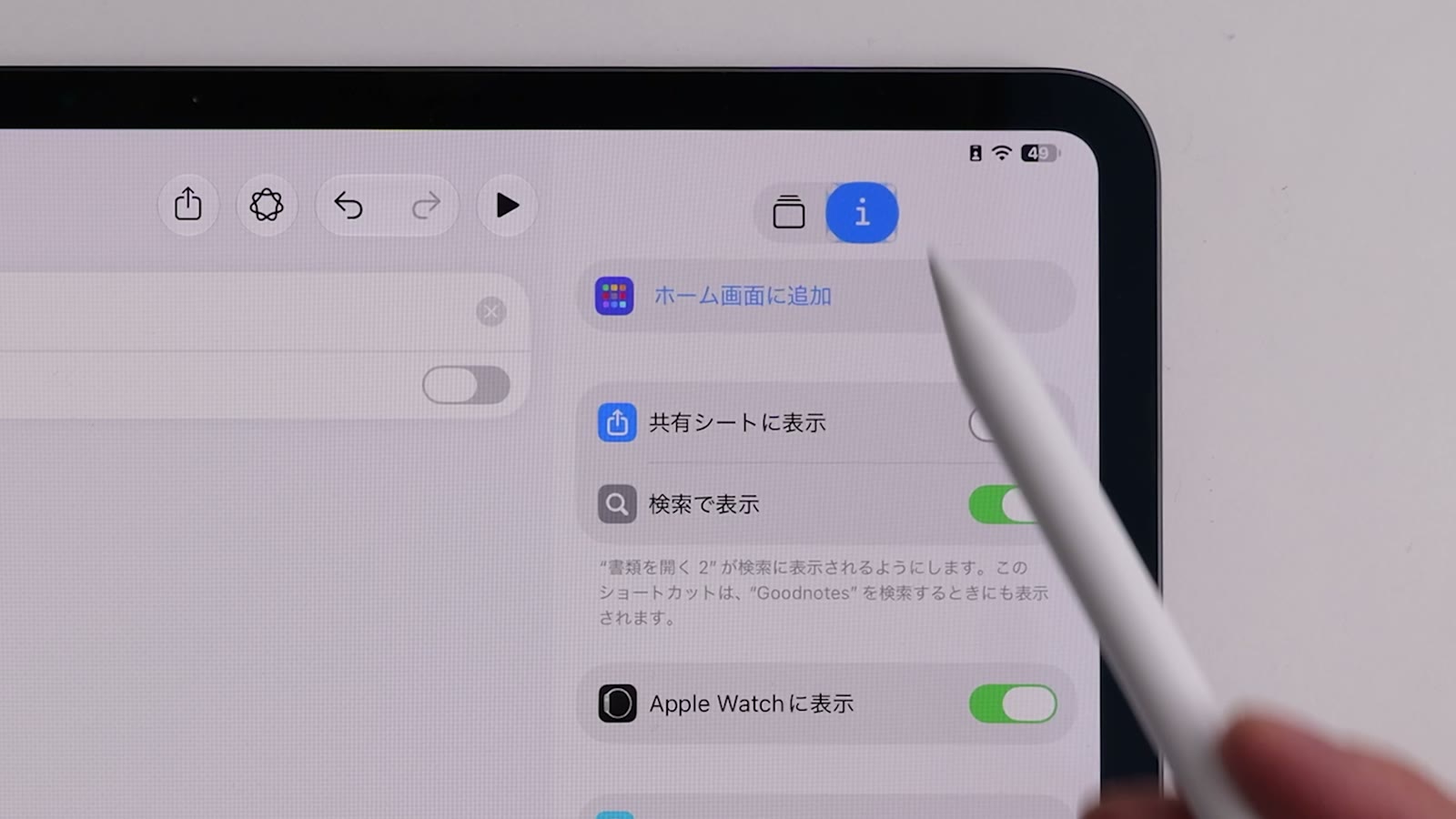
Watch in video27:50- In the shortcut editor, tap “i” at the top right and choose “Add to Home Screen”.
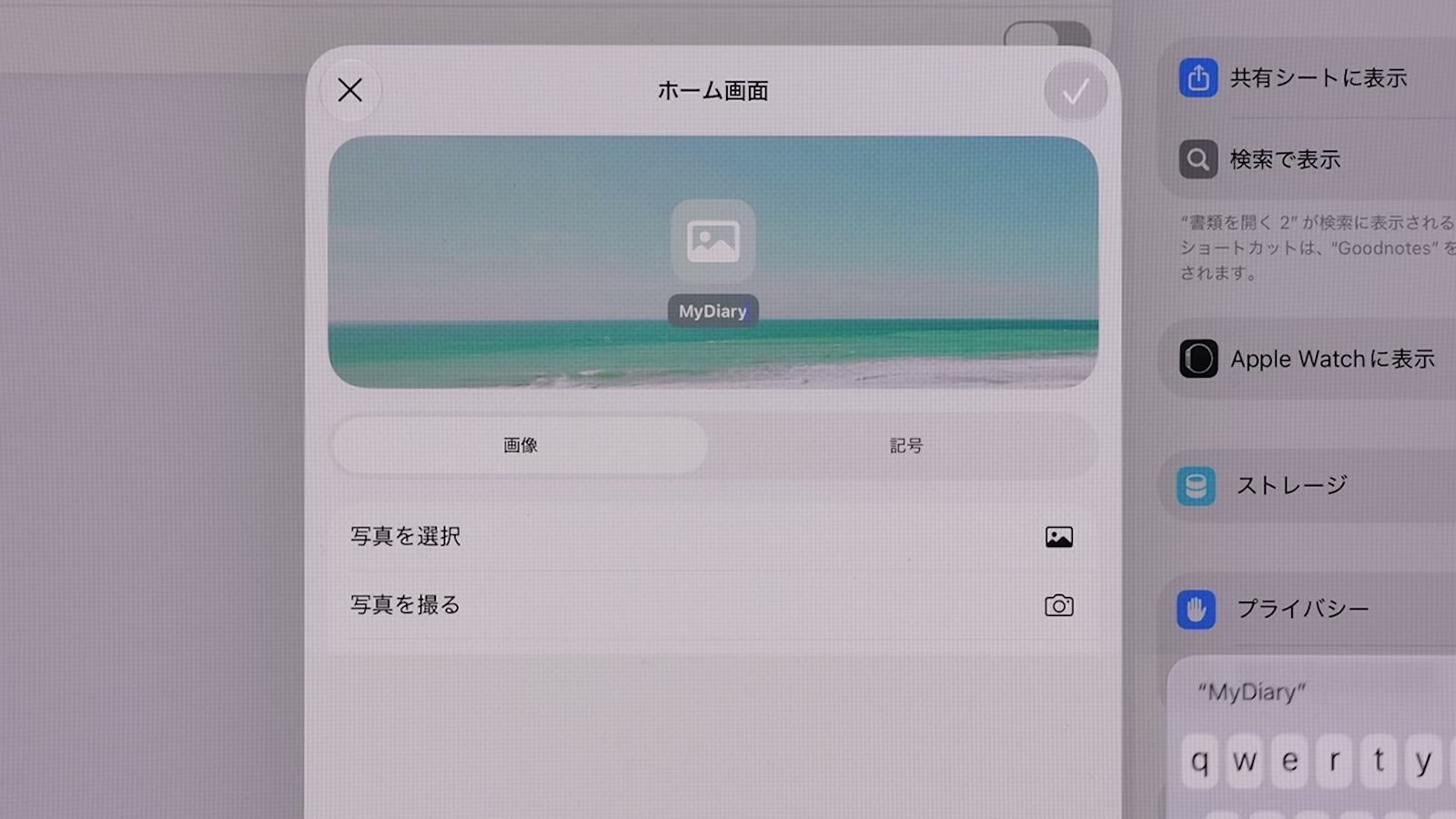
- Enter your planner’s name (e.g. MyDiary) as the name.
- Switch the icon to a photo, tap “Choose File”, and pick the icon image you saved in step 1.
- Tap “Add”.
The icon is now on your Home Screen. Tap it and your planner opens right away.
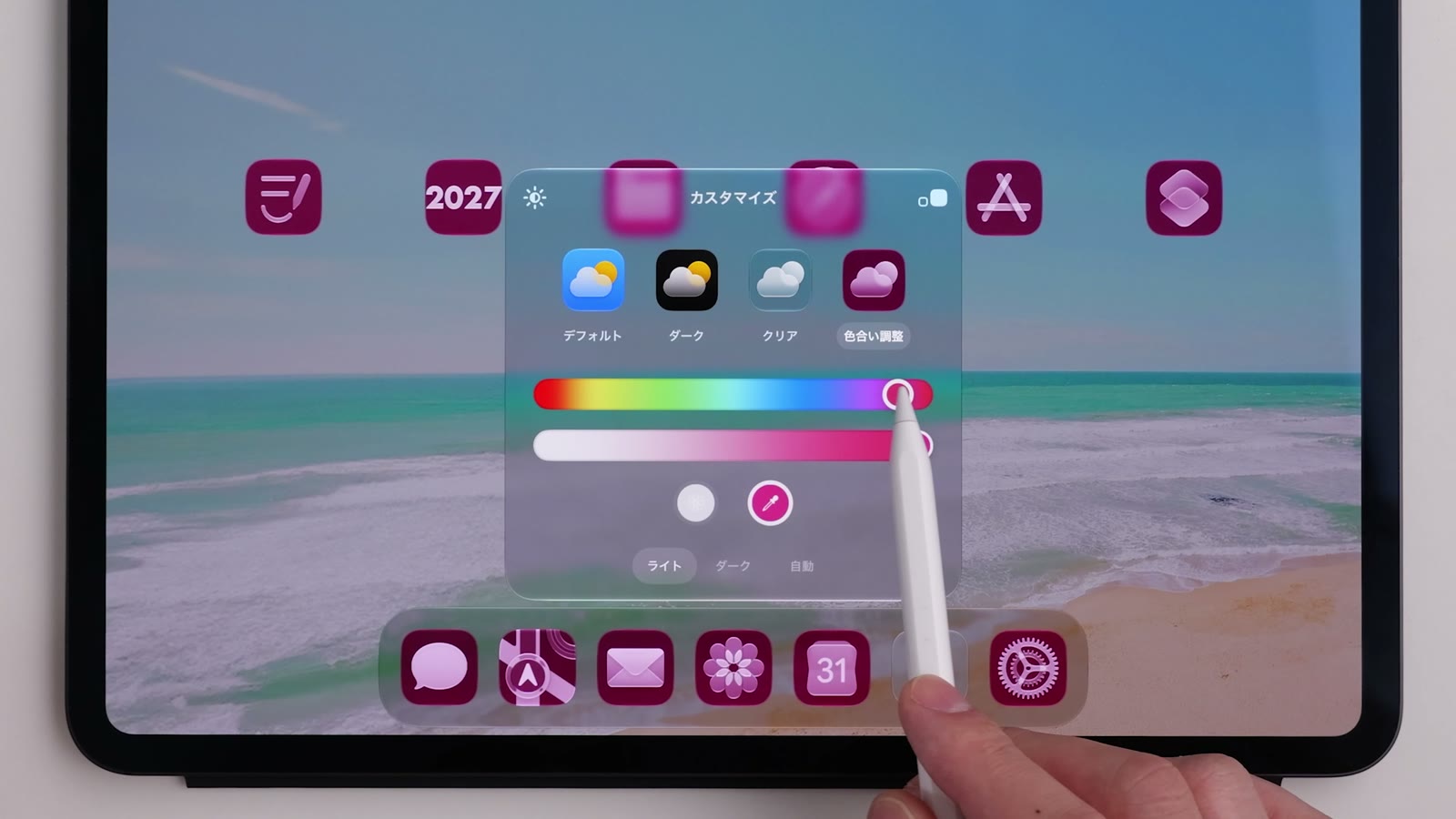
Looks good on a Liquid Glass Home Screen too
Watch in video28:17If your iPadOS 26 Home Screen shows icons as “Clear” or “Tinted”, the steps are the same. The KotaLog Diary icons are designed to stay recognizable in these styles. For “Clear”, we recommend the Clear Mode Icon.