Use it with Google Calendar
Open Google Calendar from KotaLog Diary pages and add handwritten plans directly. Also covers syncing with Apple Calendar and event notifications.
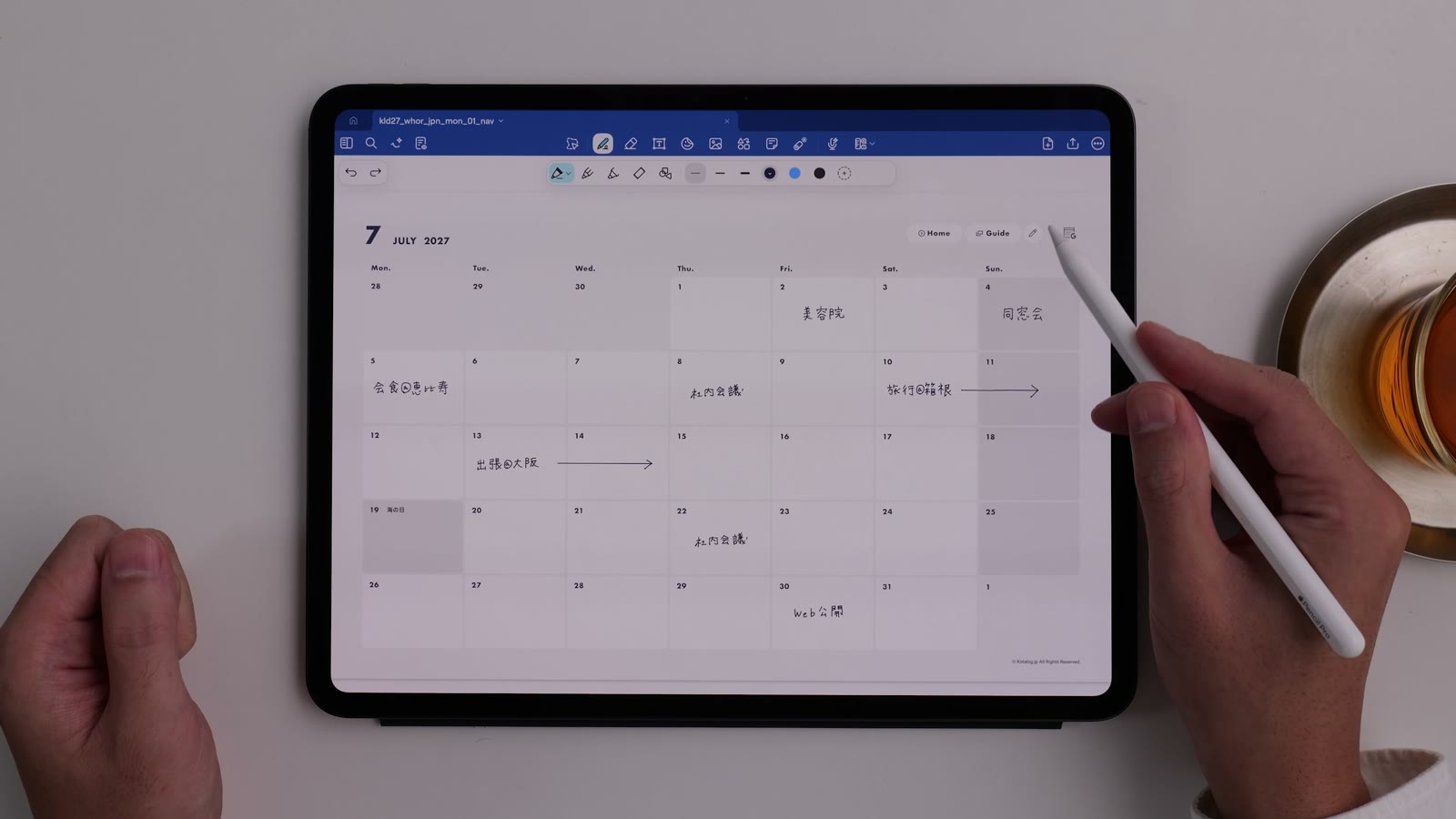
At the top right of the Monthly, Weekly and Daily pages of KotaLog Diary, there is an icon that opens Google Calendar. Here’s how to go back and forth between your handwritten planner and the Google Calendar you use at work or school.
Note that plans you write in KotaLog Diary are not synced to Google Calendar automatically. This article explains how to use the two side by side and add the plans you need.
Note: screens and menu names may differ depending on your app and iPadOS versions. The screenshots were taken in October 2026 with the Japanese interface.
1. Open the same period in Google Calendar with the G icon
Watch in video12:49Tap the calendar icon with a “G” at the top right of a page to open Google Calendar for the same period as the page you’re on.
- From a Monthly page: the same month
- From a Weekly page: the same week
- From a Daily page: the same day
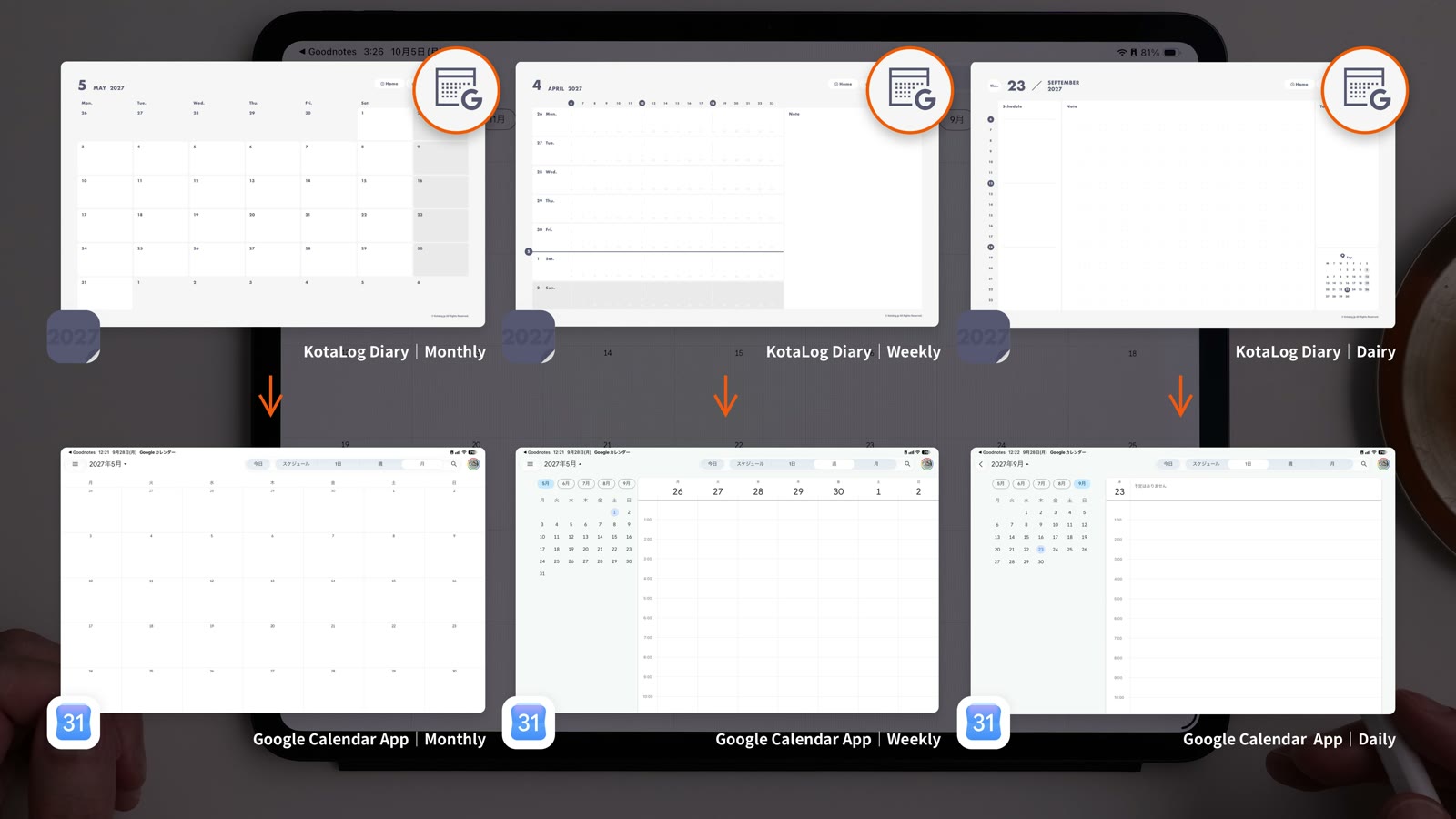
If the Google Calendar app is installed, the app opens; otherwise the web version opens in Safari. Because the link is part of KotaLog Diary itself, it works in any note app that supports external links, not just Goodnotes.
2. Show them side by side and add handwritten plans directly
Watch in video13:23Split your iPad screen between KotaLog Diary and Google Calendar to compare them while you update your plans.
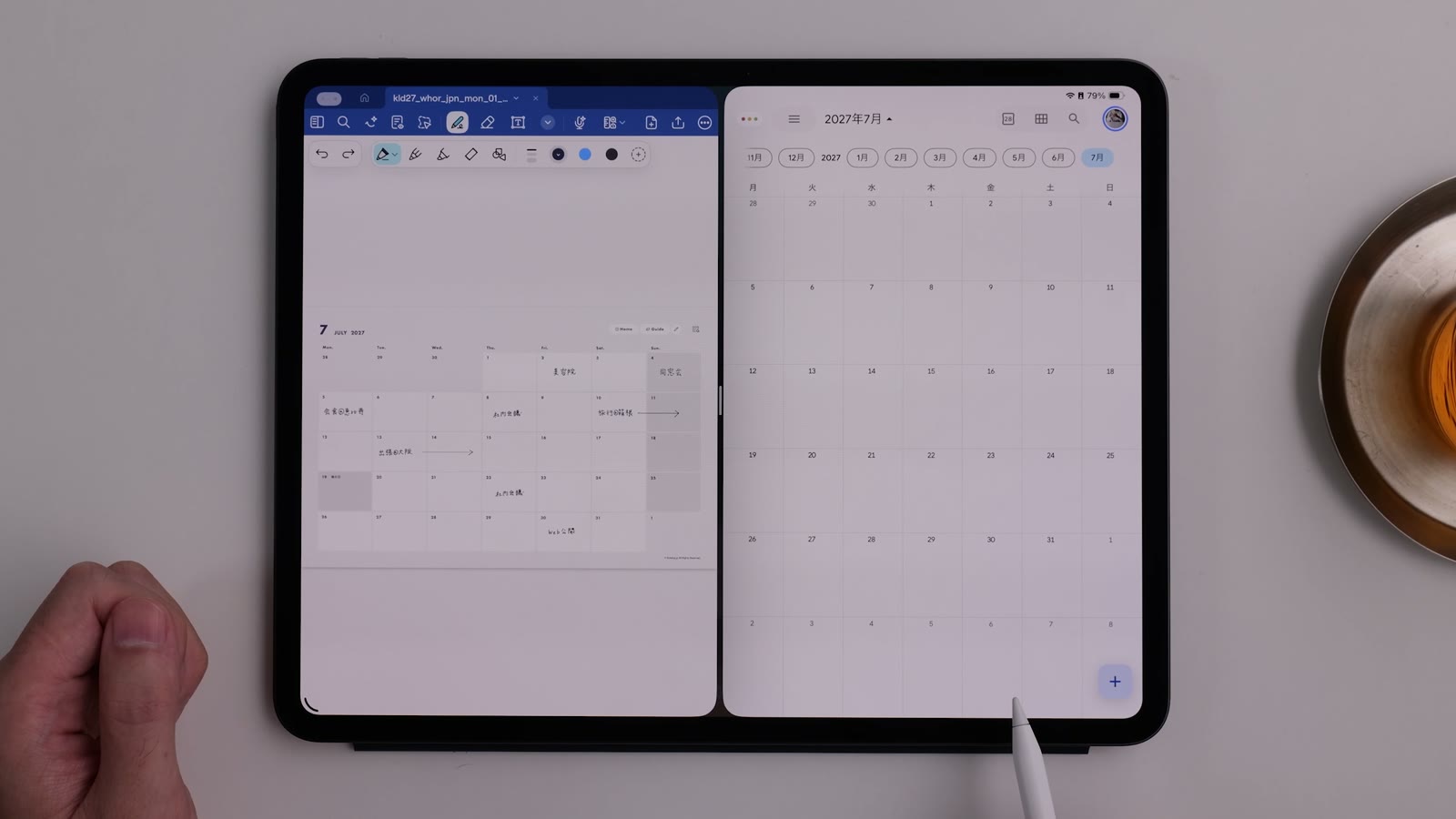
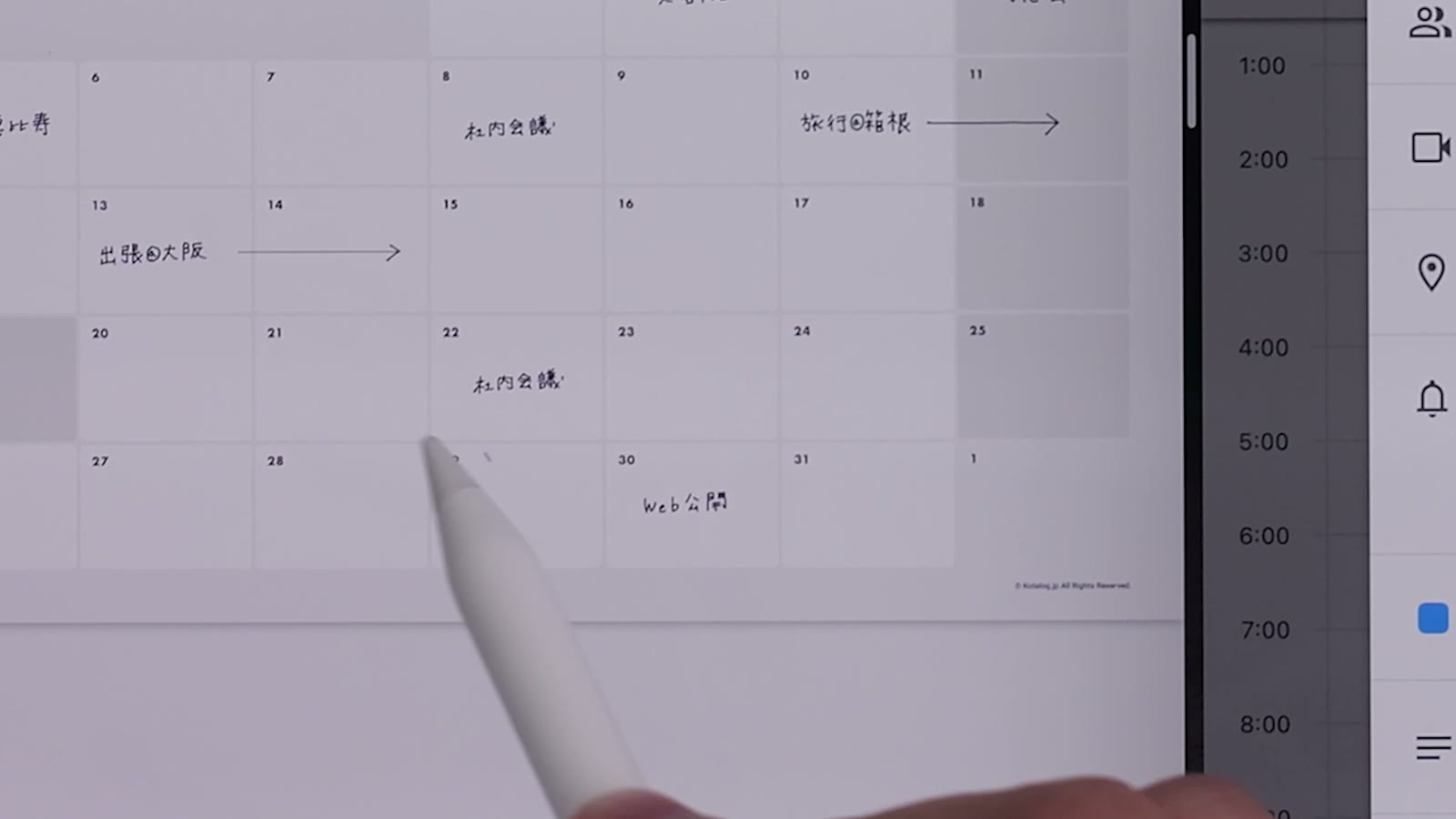
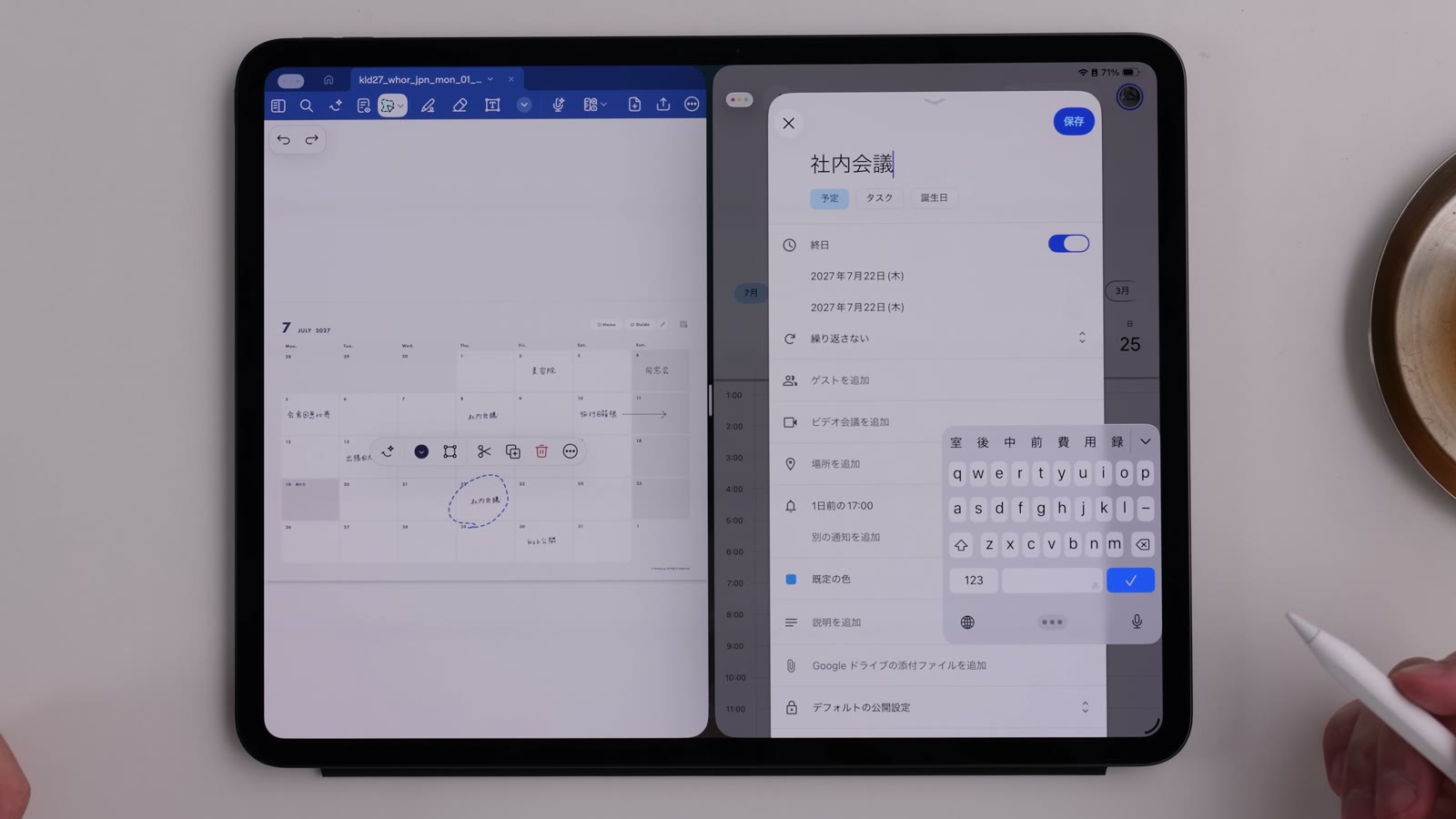
In Goodnotes, you can circle a handwritten plan with the Lasso tool and drag and drop it into the title field of a Google Calendar event. Your handwriting is entered as text, so you don’t have to type it again.
- In Google Calendar, open the screen for creating an event.
- In Goodnotes, circle the handwritten plan with the Lasso tool.
- Drag and drop it into the title field.
- Check the date and time, then save.
3. Match the start of the week
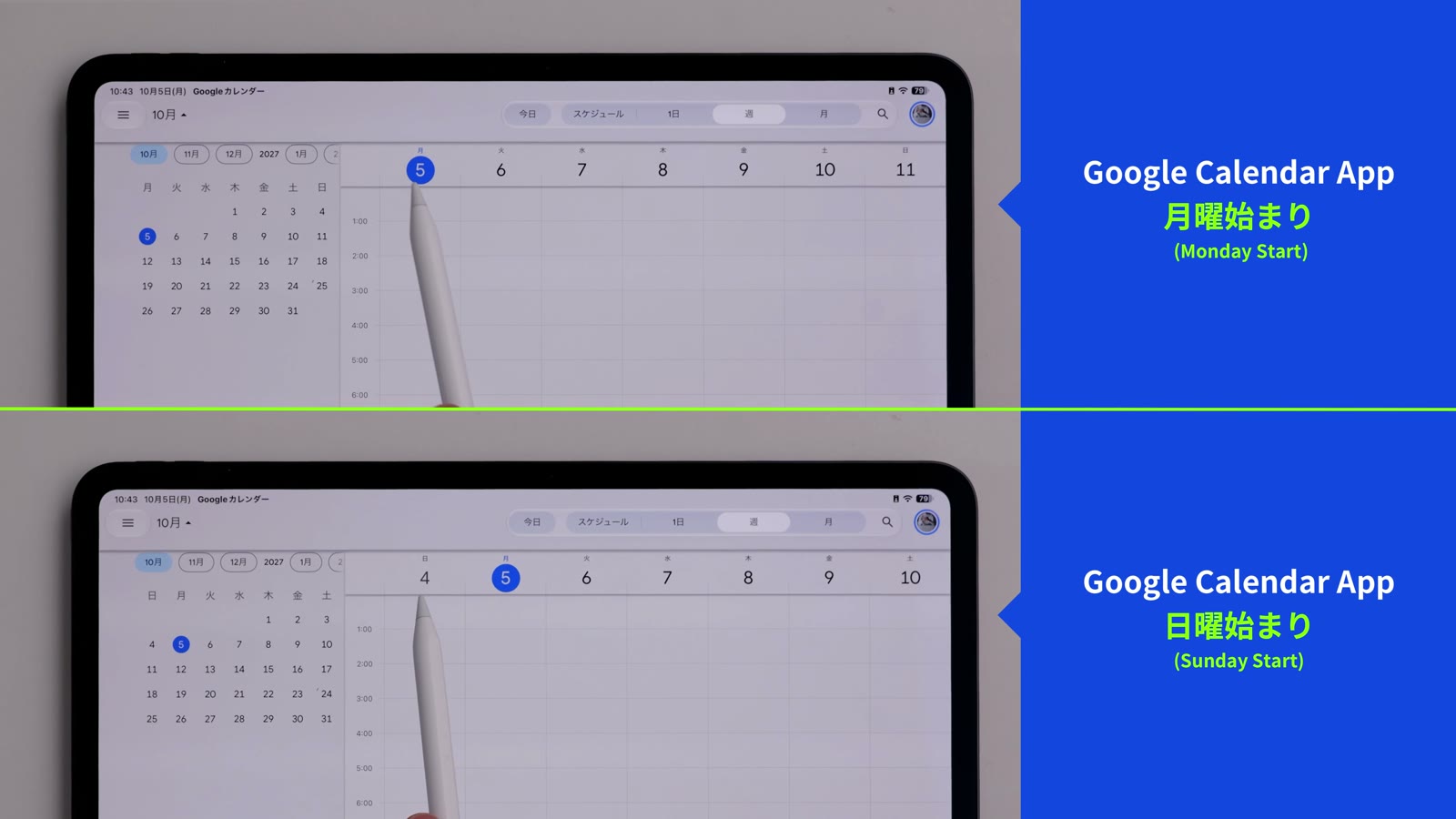
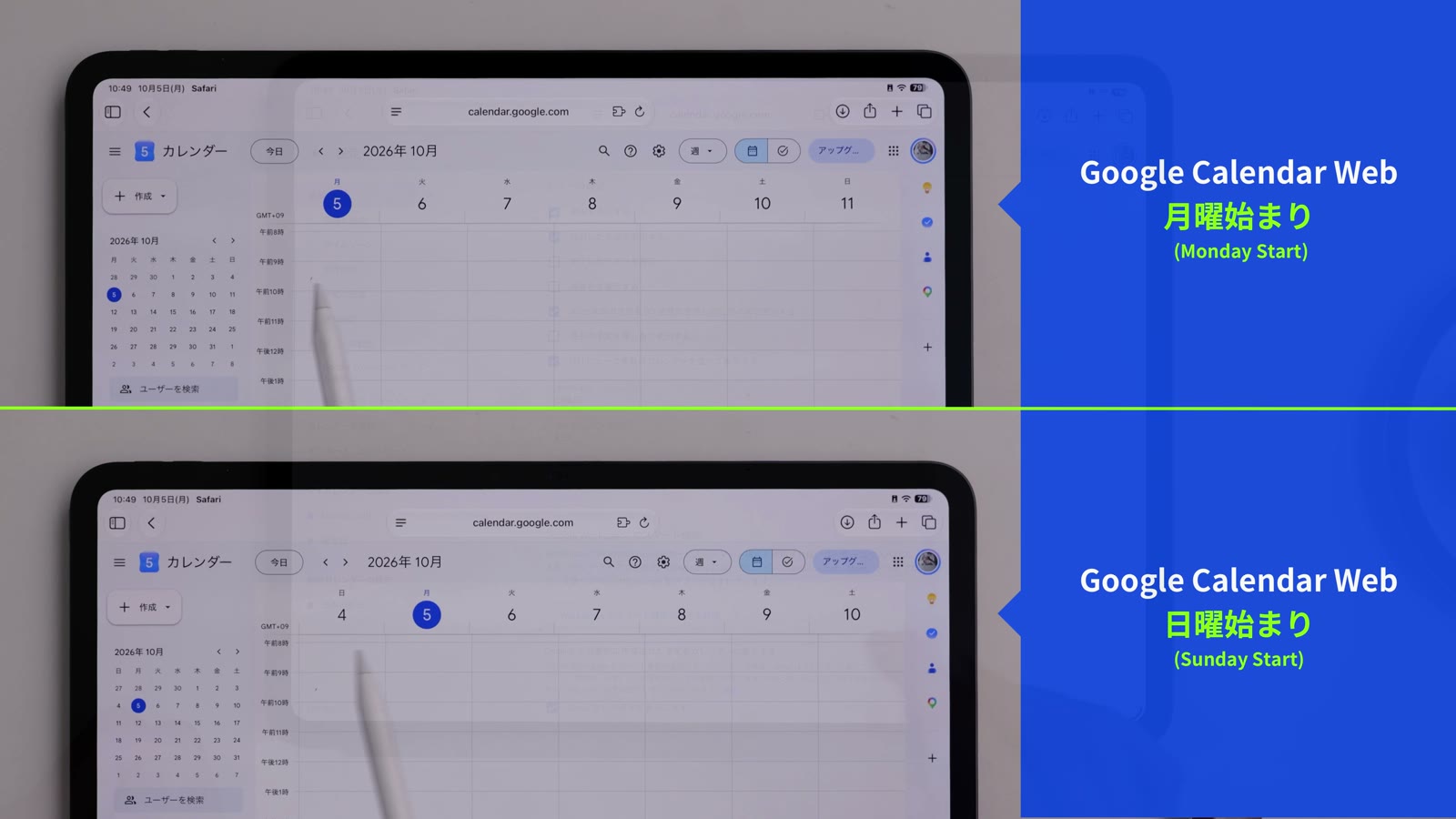
Watch in video25:16KotaLog Diary comes in Monday-start and Sunday-start editions. Setting Google Calendar to the same week start makes the two easier to compare side by side.
Google Calendar app
Open “Settings” from the side menu and choose “Start of the week”.
Google Calendar on the web
Open “Settings” at the top of the page and choose “Start week on” under “View options”.
4. Sync with Apple Calendar
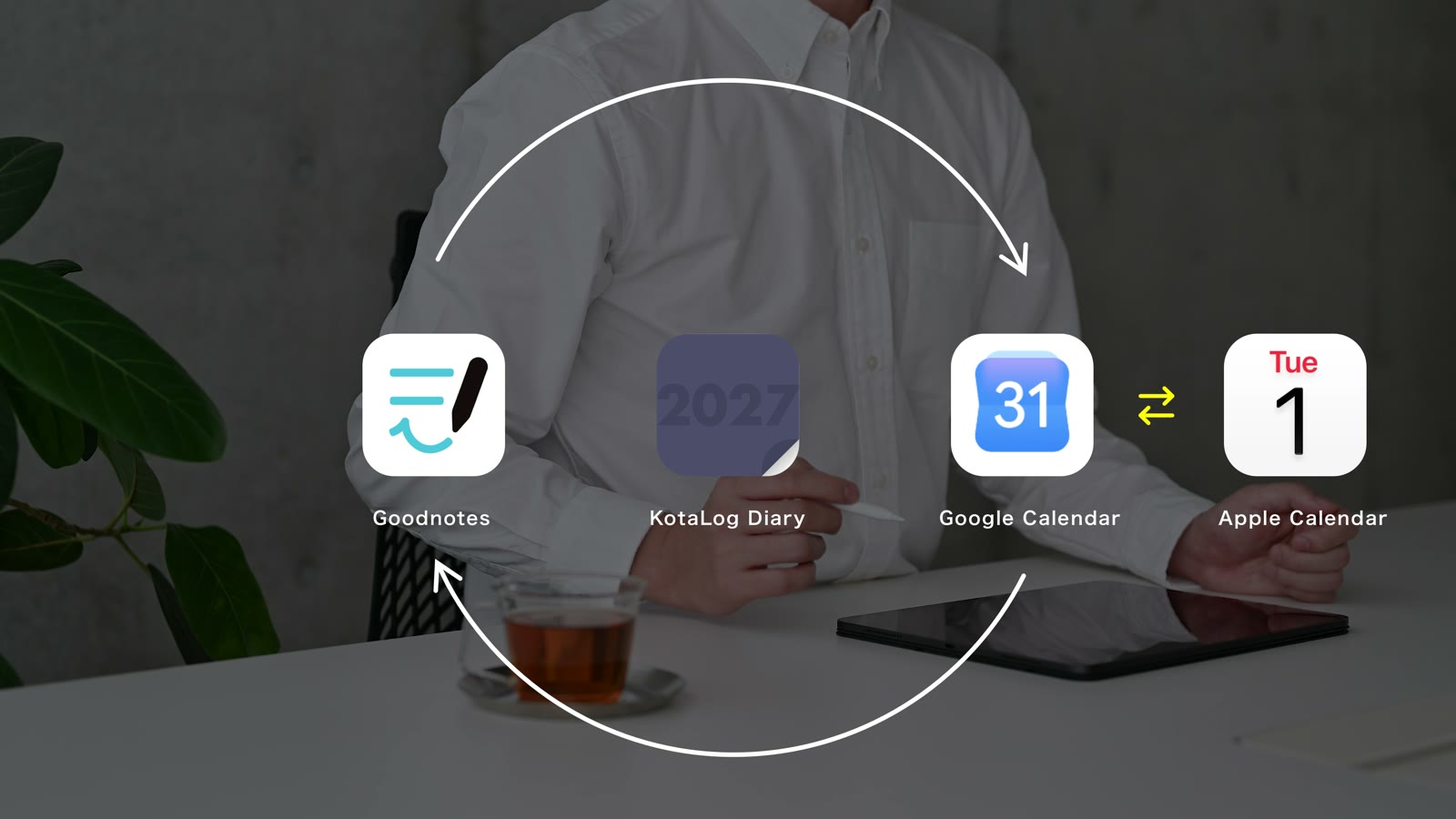
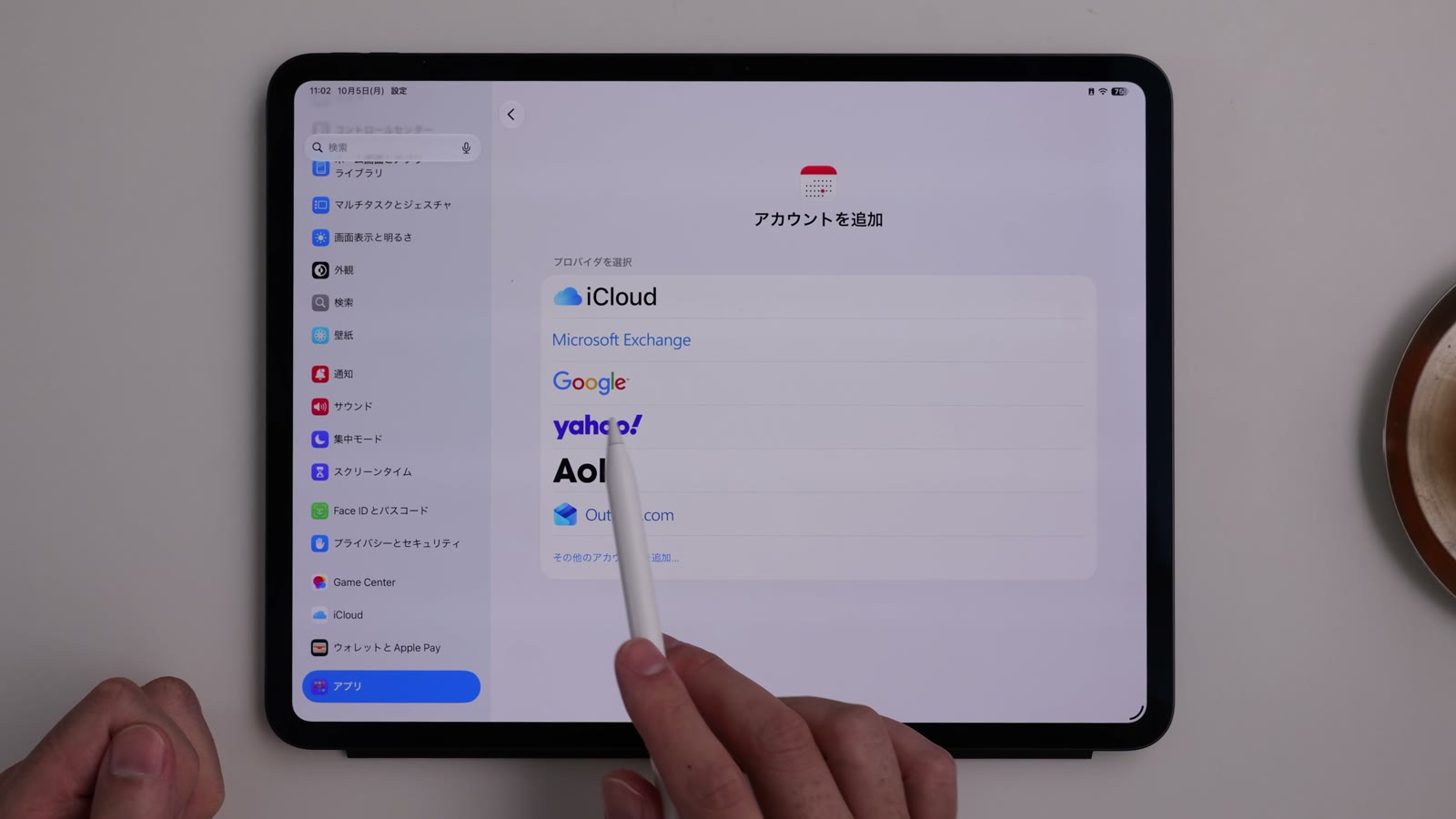
Watch in video25:42KotaLog Diary can’t open Apple Calendar directly, but you can sync your plans by connecting Google Calendar with Apple Calendar.
- On your iPad, open the Settings app and go to “Calendar”.
- Under accounts, choose “Add Account”.
- Choose “Google” and sign in with your Google account.
- Turn on “Calendars” for syncing.
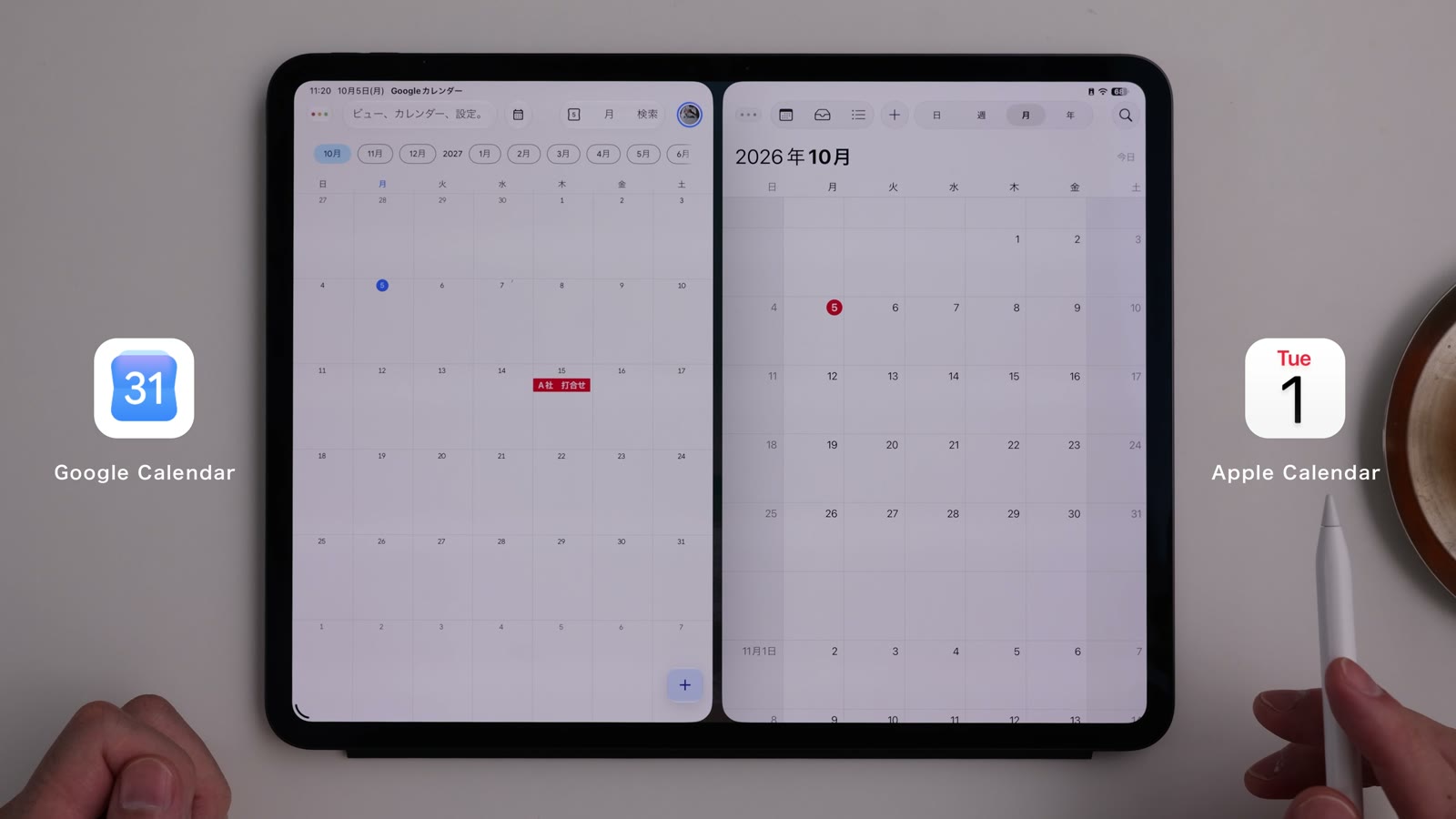
Once connected, events you add in Google Calendar also appear in Apple Calendar, and events added in Apple Calendar appear in Google Calendar.
5. See upcoming events in Goodnotes
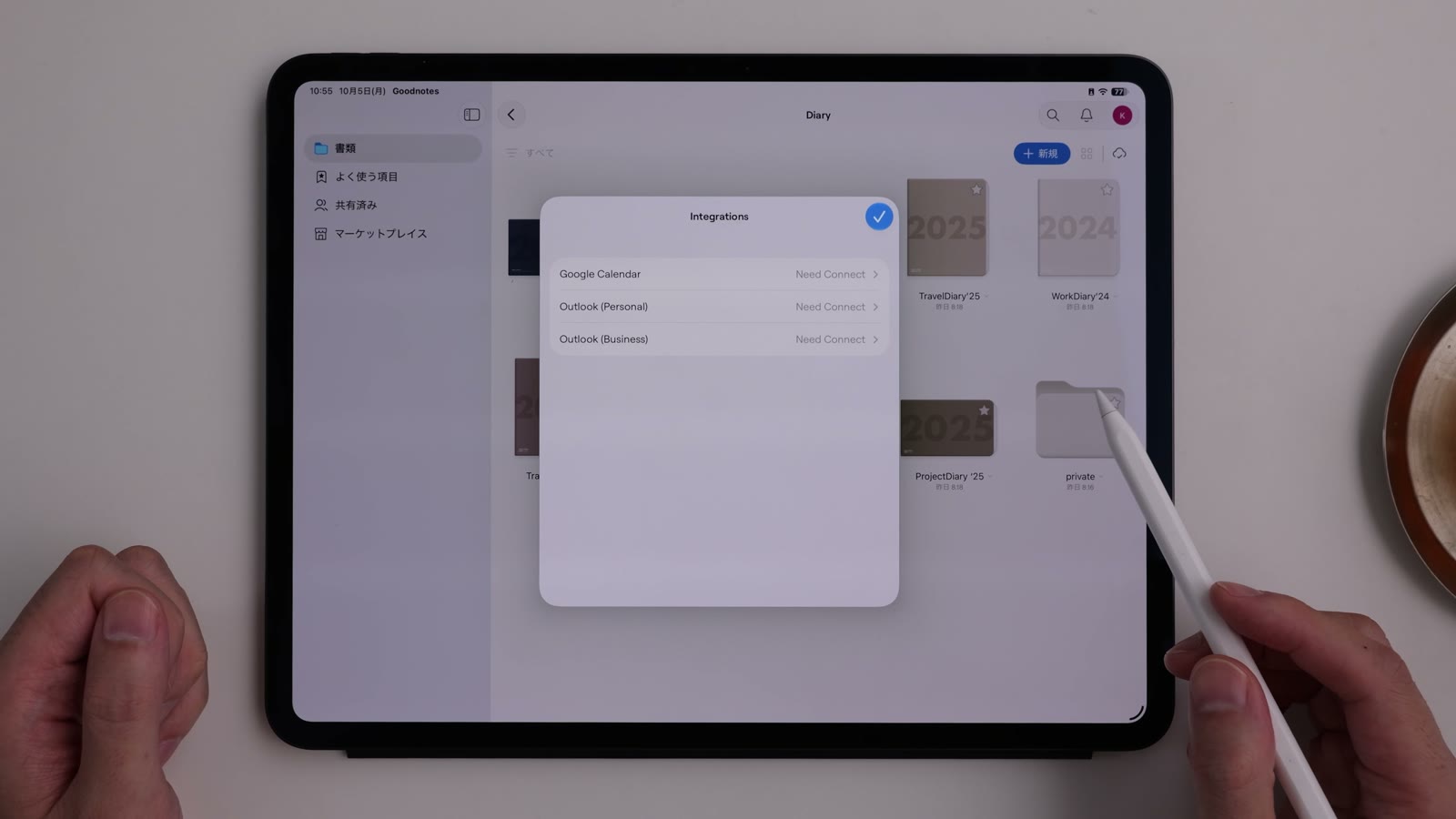
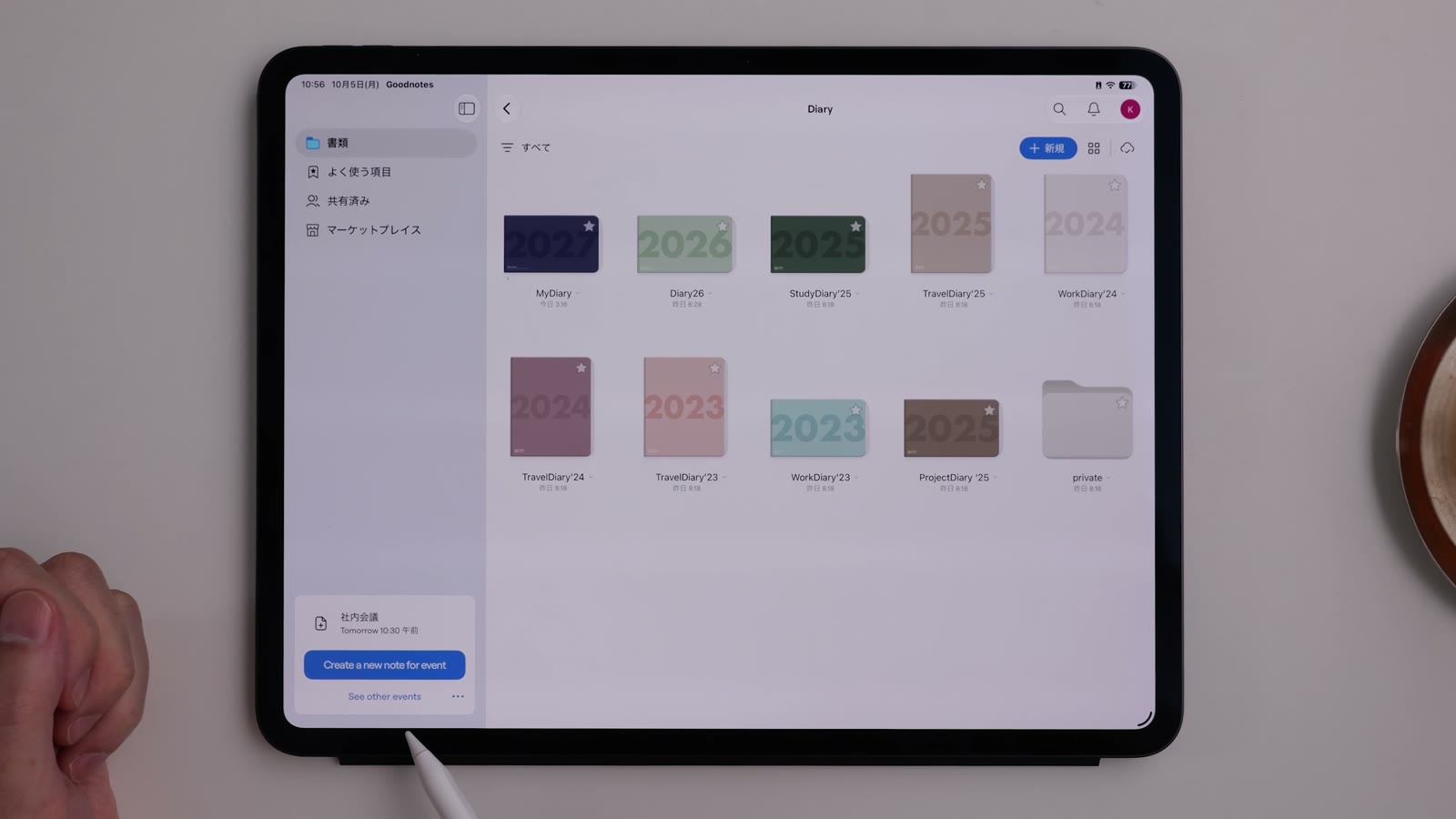
Watch in video26:10In Goodnotes 7 and later, connecting Google Calendar shows upcoming events on the Goodnotes home screen as their time approaches.
- On the Goodnotes home screen, tap your profile.
- Open “Integrations” from the menu.
- Choose “Google Calendar” and connect your Google account.