
Get started with KotaLog Diary in Goodnotes
From importing the file to settings that make writing easier and using the Guide page — everything to set up KotaLog Diary comfortably in Goodnotes.
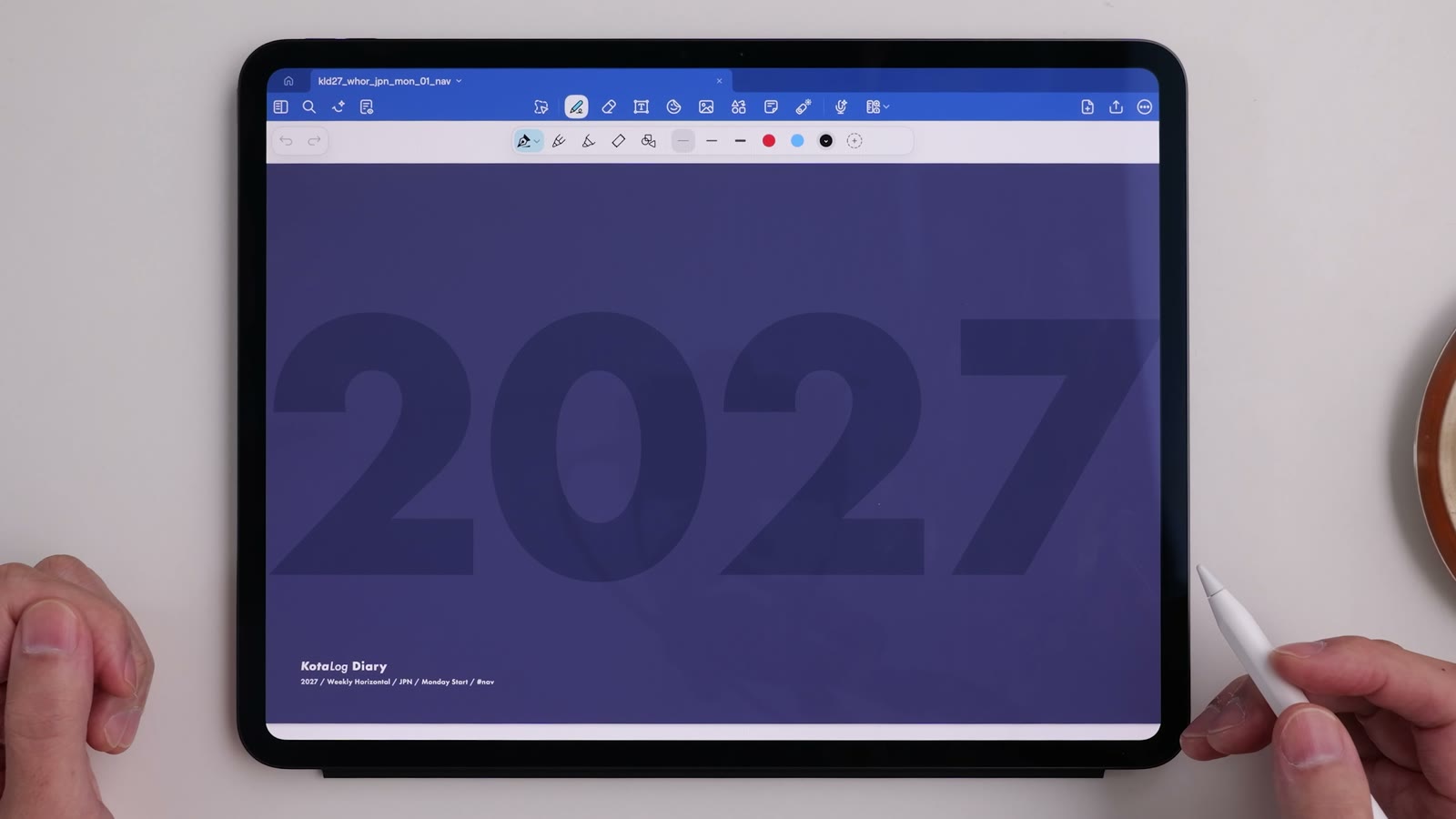
KotaLog Diary works in many note apps that support hyperlinks. This article walks through getting started with the most popular combination, iPad and Goodnotes, and the settings that make it more comfortable to use.
Note: screens and menu names may differ depending on your versions of Goodnotes and iPadOS. The screenshots were taken in October 2026 with the Japanese interface.
1. Import KotaLog Diary into Goodnotes
Watch in video24:33Import the file you downloaded after purchase into Goodnotes. For purchasing and downloading, see the Manual.
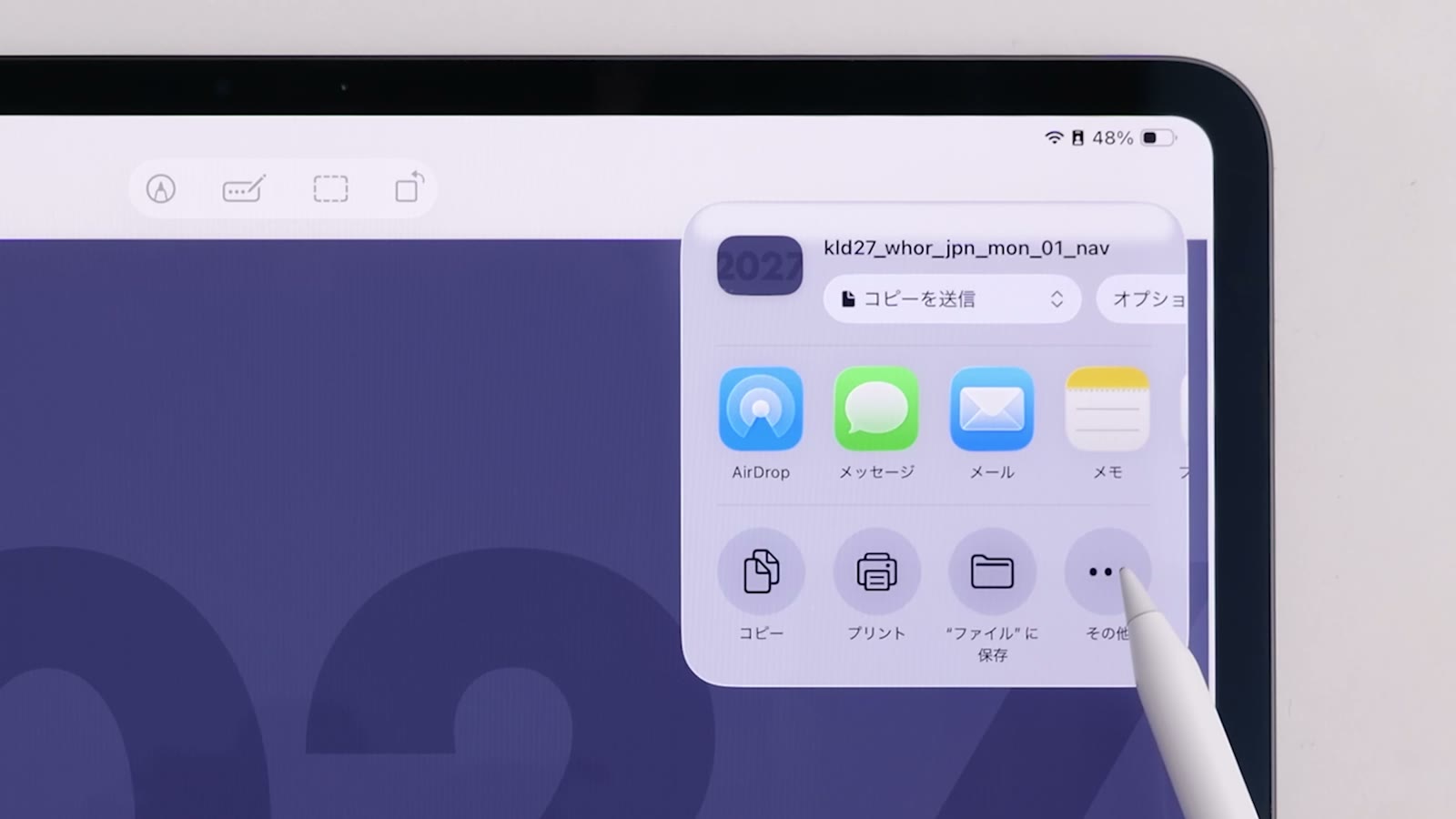
- Open the downloaded KotaLog Diary file and choose “Open in Goodnotes” from the Share button.
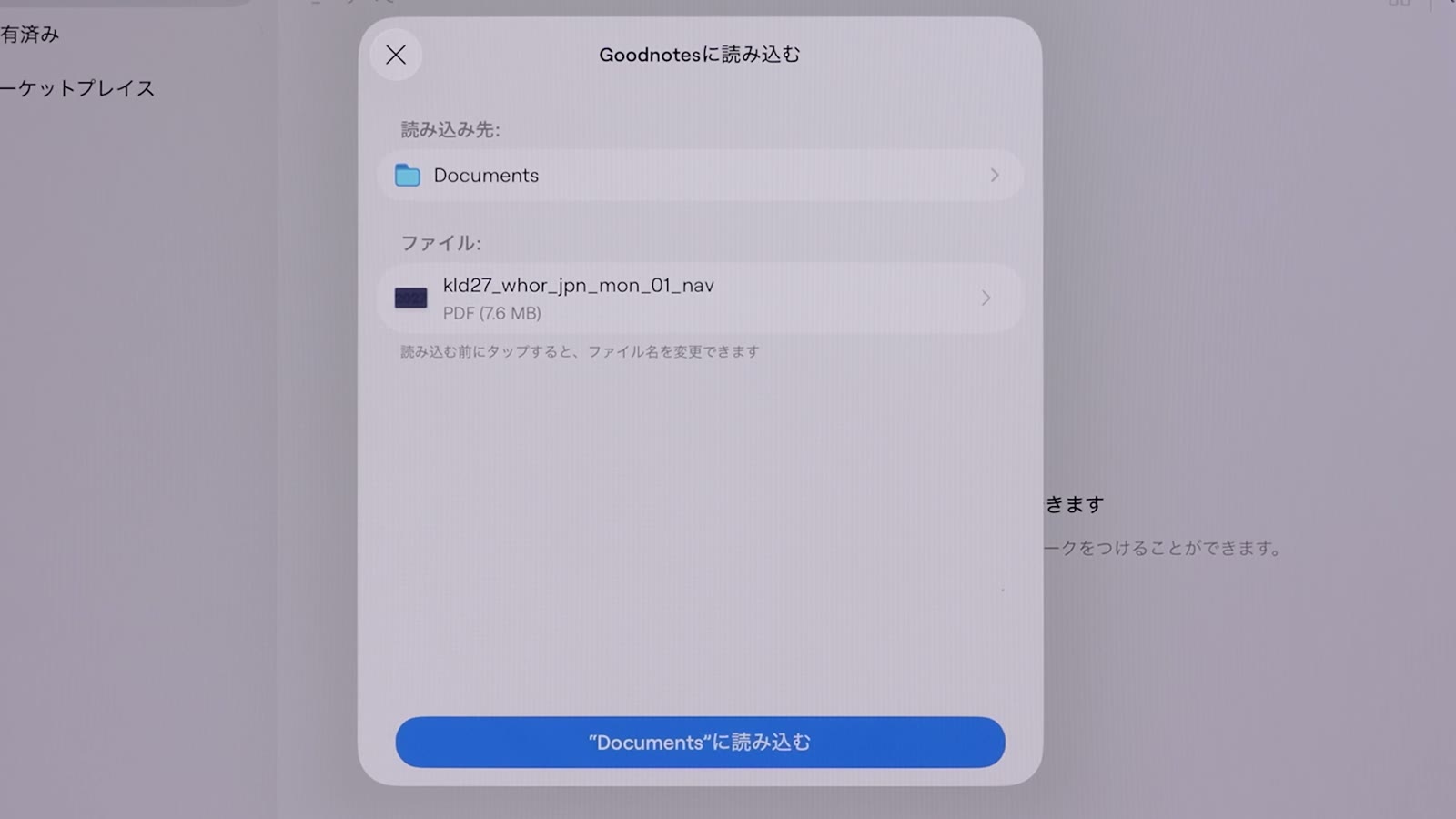
- Choose a folder and tap “Import to (folder name)”.
- When the cover opens as a Goodnotes document, you’re ready.
2. Write with Apple Pencil only
Watch in video24:50By default you can also write with your finger. If only Apple Pencil writes, you won’t leave stray lines when you turn pages or scroll with your finger.
- With a document open, tap “…” (More) at the top right.
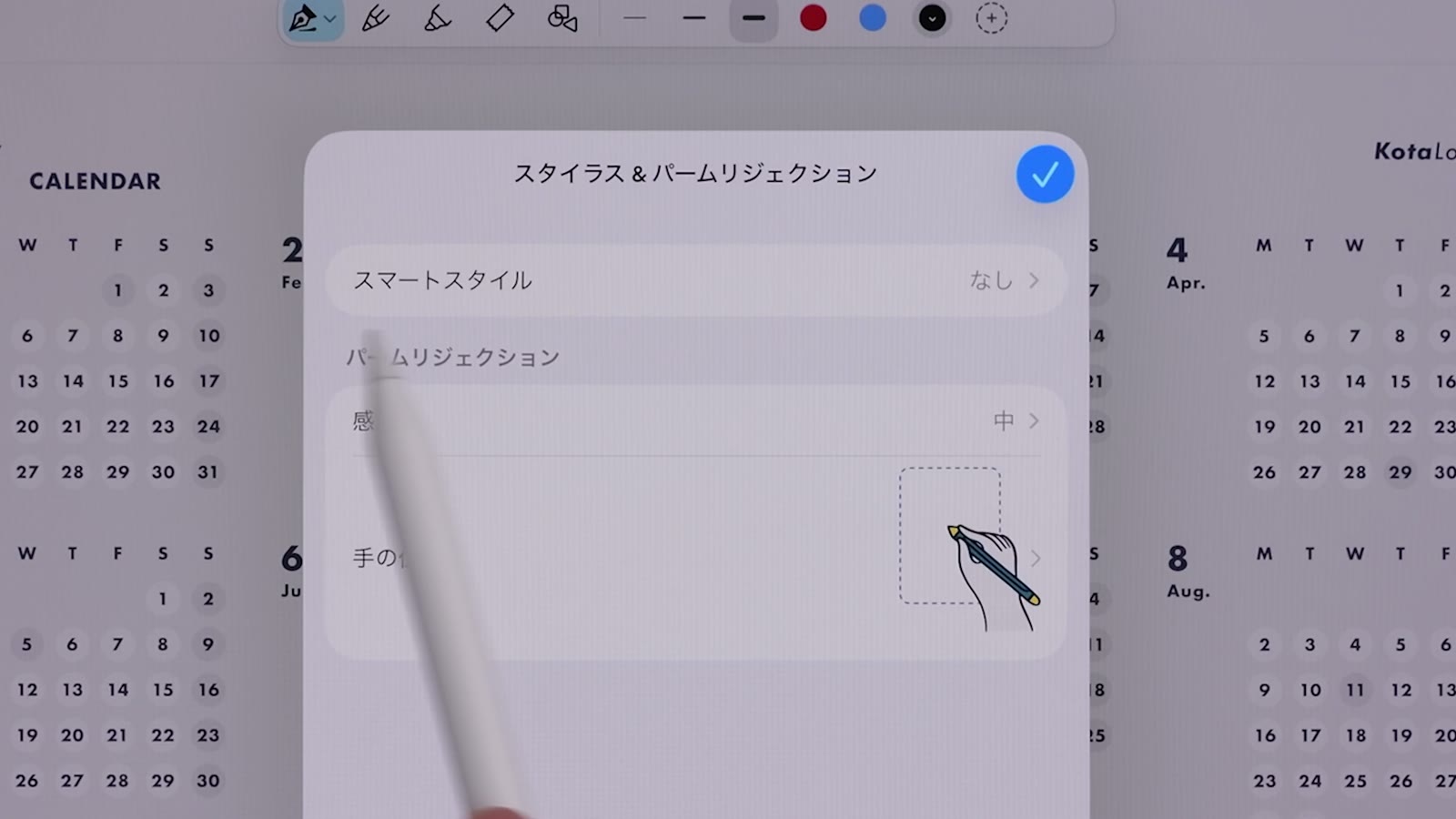
- Open “Stylus & Palm Rejection”.
- Choose “Apple Pencil” as the stylus.
3. Set the handwriting recognition language
Watch in video25:07Goodnotes can search your handwriting too. Matching the document’s recognition language to the language you write in improves recognition.
Tap the document name at the top left to open the document info, and check “Recognition Language”. Choose the language you usually write in.
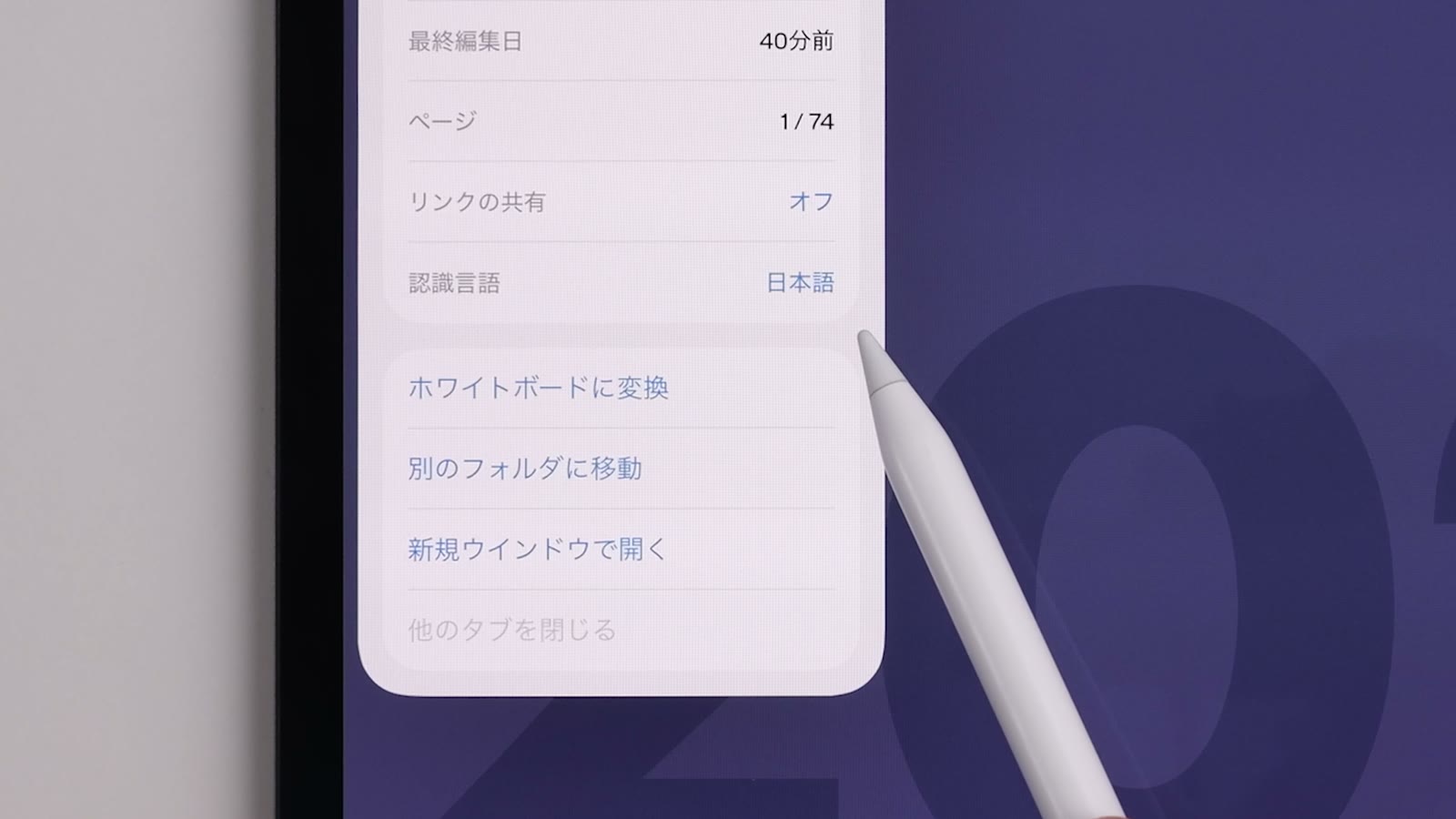
Then you can find handwritten plans and notes from the search at the top left — handy when you can’t remember where you wrote something.
4. Hide the status bar for more room
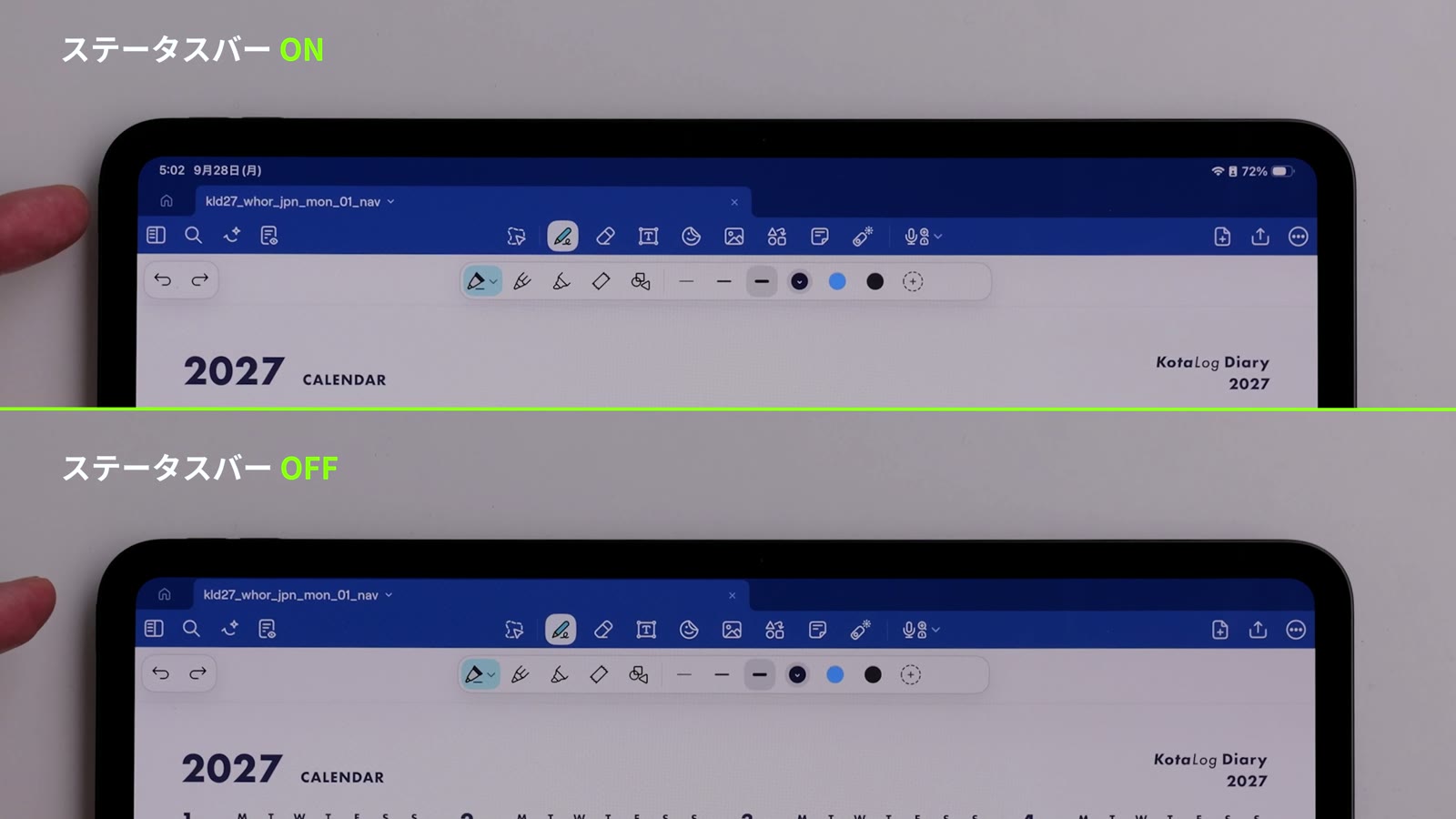
Watch in video9:56Hiding the status bar (time and battery) at the top of the screen gives the page more room. This is especially useful on the smaller iPad mini.
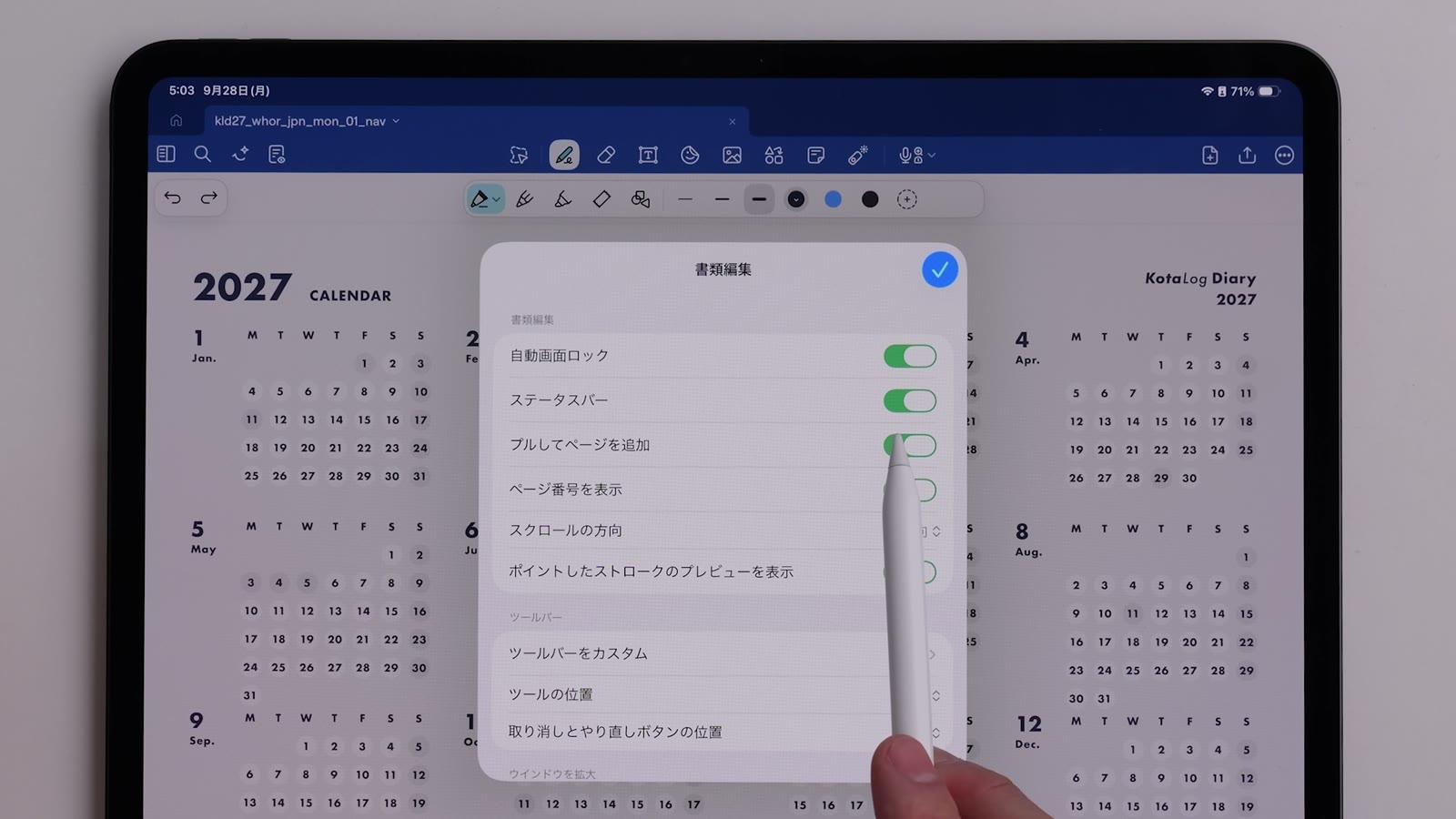
- Open “Document Editing” from “…” (More) at the top right.
- Turn off “Status Bar”.
5. Float the Guide page over your planner
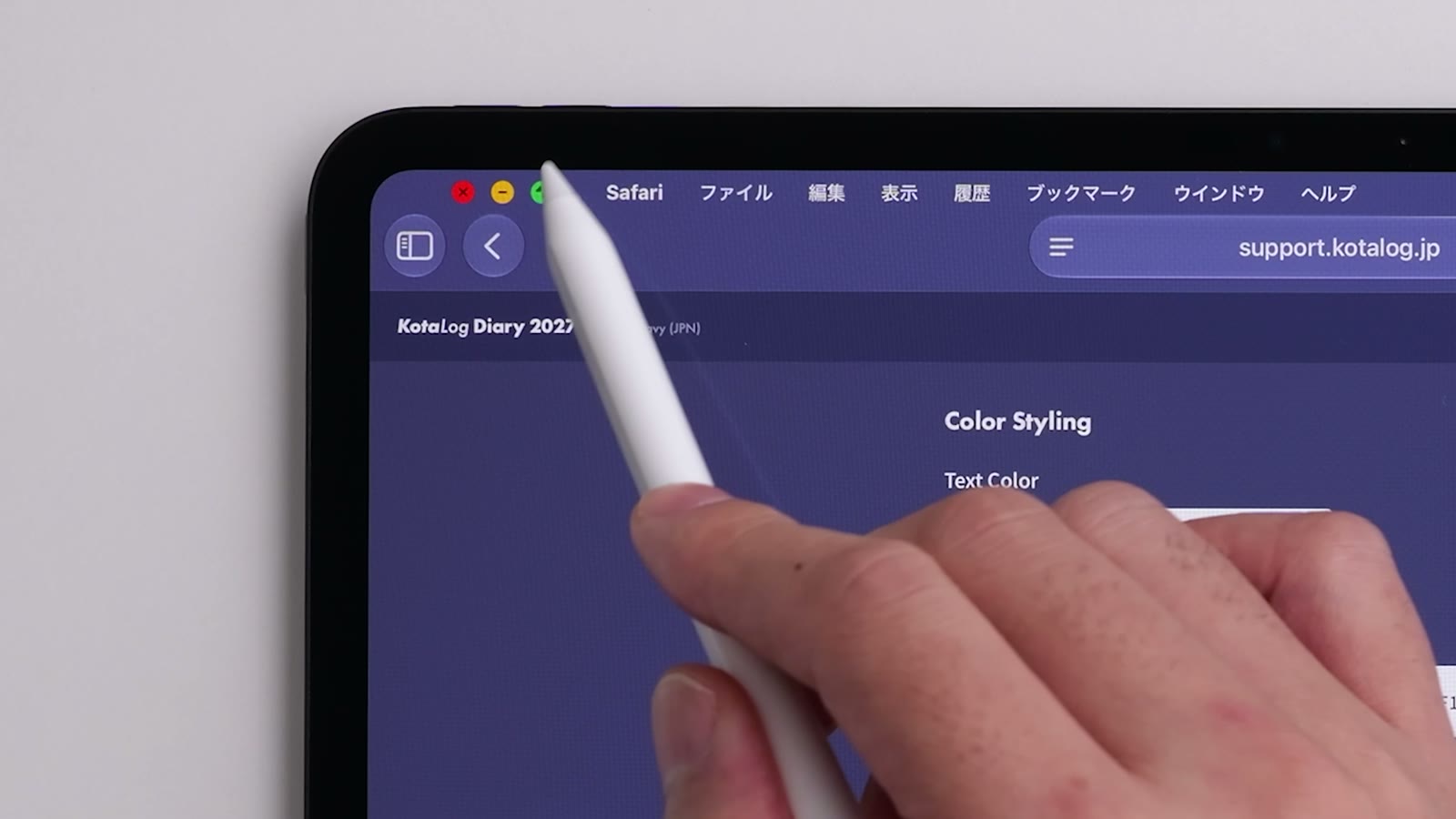
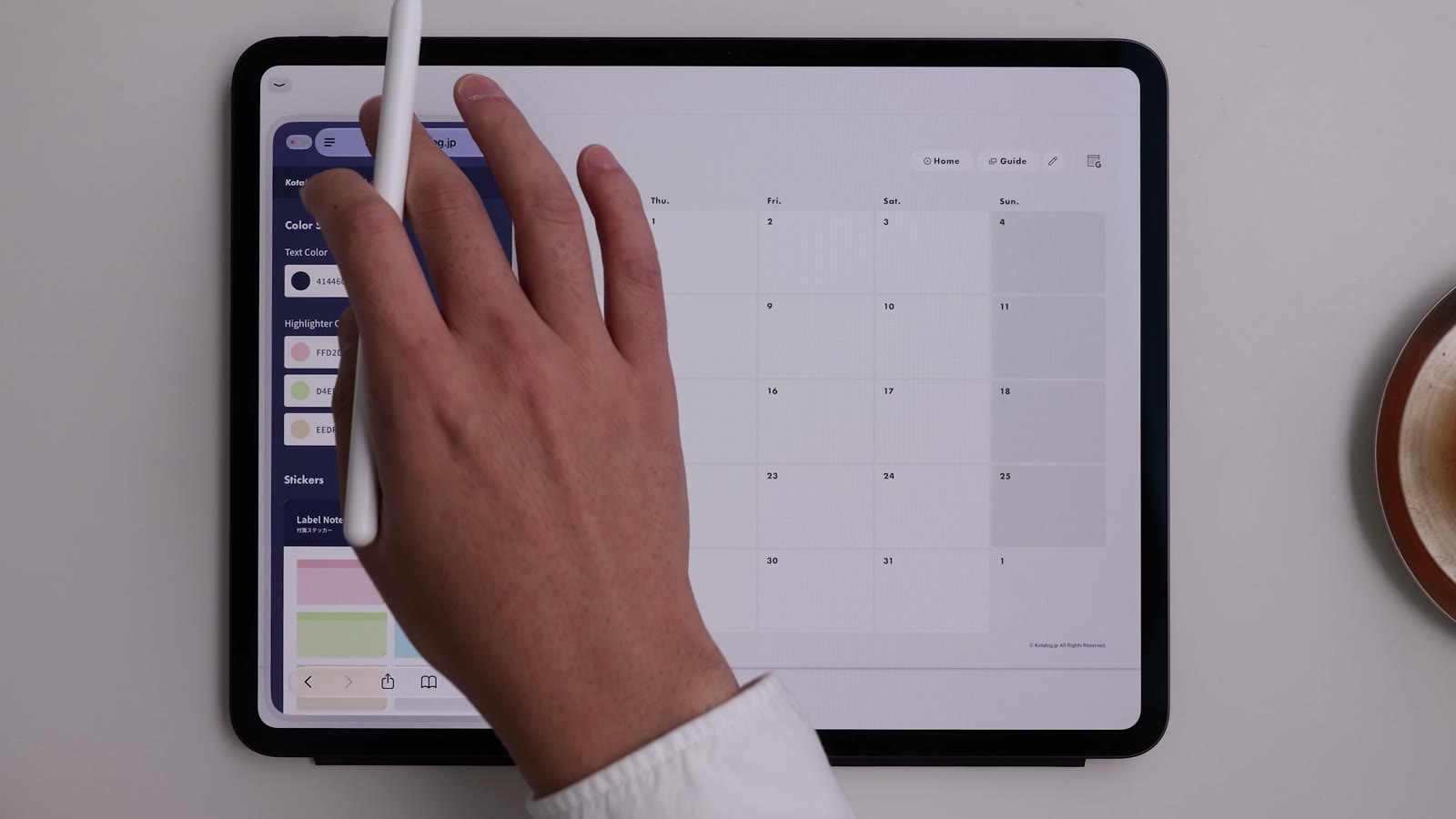
Watch in video11:04Tap “Guide” at the top right of a page to open the Guide page for your color in Safari. With iPadOS Slide Over, you can keep the Guide page floating above your planner while you write.
- With the Guide page open in Safari, touch and hold the green button at the top left of the window.
- Choose “Slide Over” from the menu.
6. Add the Color Styling colors to your pens
Watch in video11:39“Color Styling” on the Guide page lists recommended pen and highlighter colors that match your theme color. Tap a color value to copy it, then add it to your Goodnotes pen colors.
- On the Guide page, tap the color value you want to copy it.
- In Goodnotes, open the pen color, go to “Custom”, and paste it into the color value field.
- Tap “Add to Presets”. Highlighters work the same way.
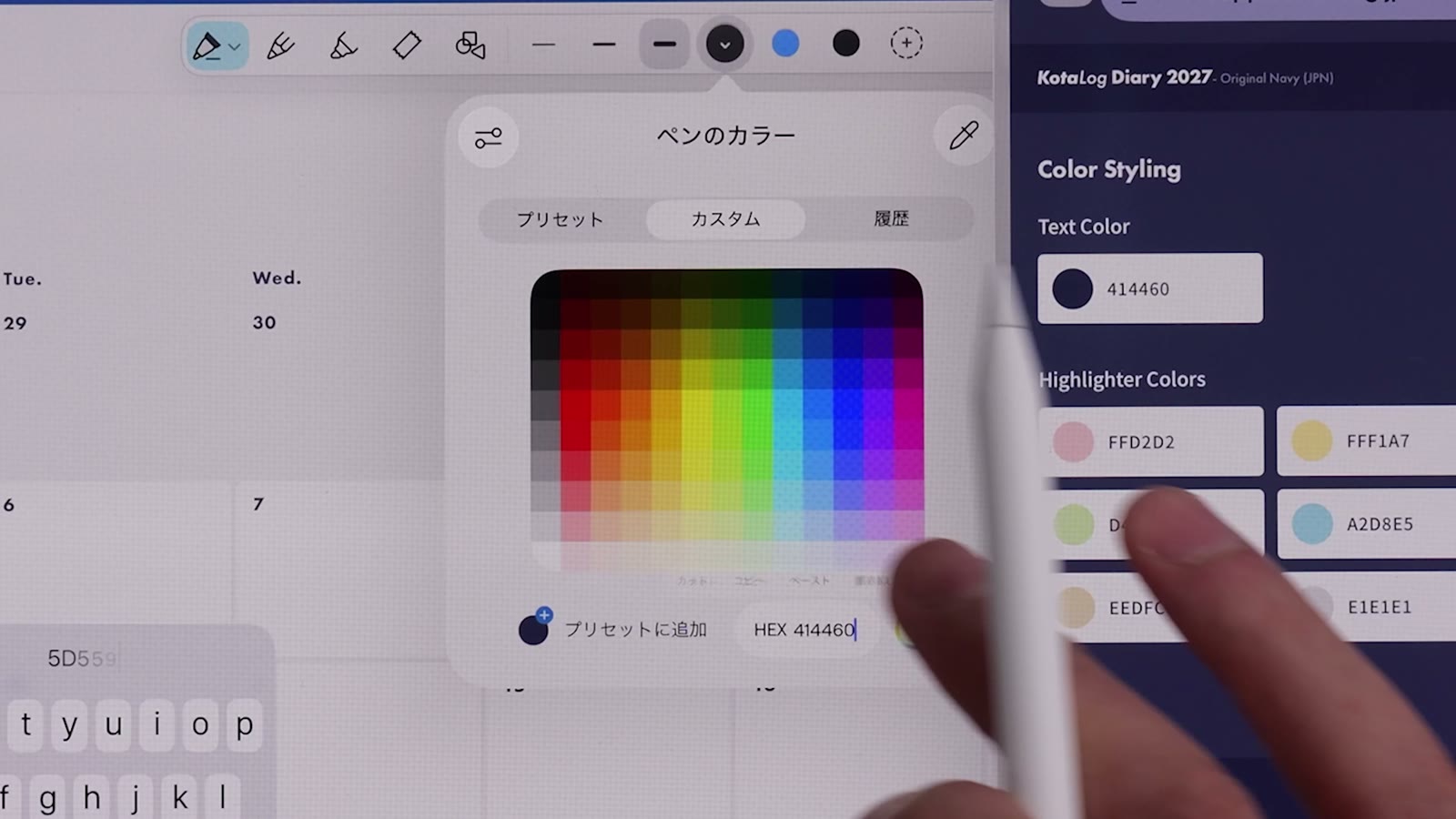
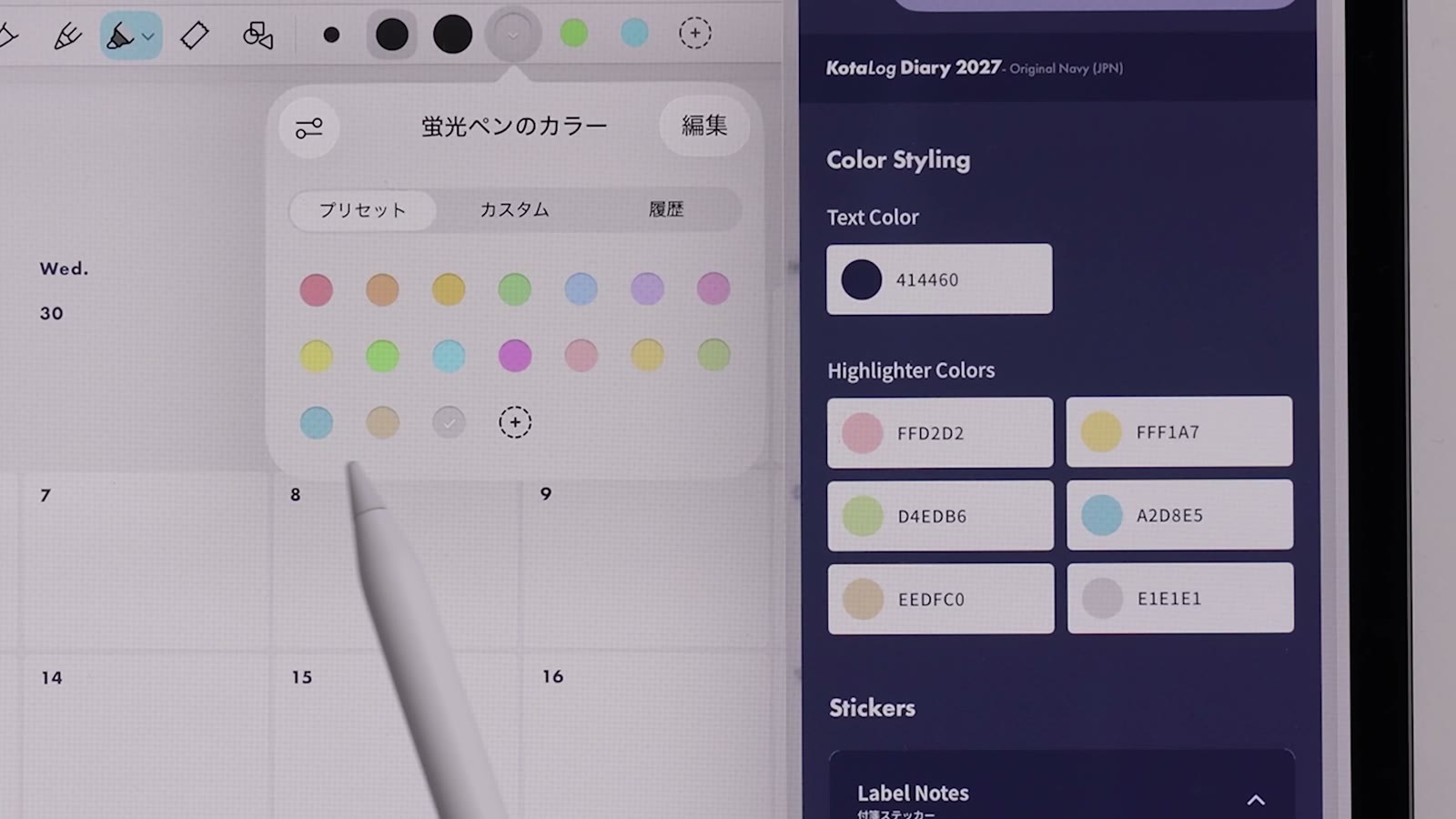
Once added, you can always write in colors that suit your planner.
7. Recommended settings in Goodnotes
Watch in video18:06KotaLog Diary is designed around Goodnotes’ default text size of 24 pt. When you use it in Goodnotes, use these values as a guide.
| Item | Recommended value |
|---|---|
| Text size | 24 pt (Goodnotes default) |
| Pen width | About 0.5 mm |
| To-do lists on Note pages | Hiragino 24 pt, line height 50 pt |
| Writing along the Daily timeline | Hiragino, line height 62 pt |
IndexNote and CHRONOGRAPHY use the same 24 pt base, so text keeps the same size when you copy and paste between templates.