
Page structure
KotaLog Diary is made up of a cover, Yearly, Monthly, Weekly or Daily, and Note pages. The pages that follow Monthly depend on the layout.
| Layout | Pages | Page count |
|---|---|---|
| Weekly Horizontal / Weekly Vertical | Cover, Yearly, Monthly, Weekly, Note | 68 pages |
| Daily Portrait / Daily Landscape | Cover, Yearly, Monthly, Daily, Note | 380 pages |
Yearly page: the entrance to your year
Watch in video9:19The first page after the cover. Besides showing the whole year, it works as the navigation hub for the planner — start here to reach any month or date.
Monthly page: the month at a glance
Watch in video10:31See the month’s deadlines, events and outings. Each day has generous space so plans are easy to write in.
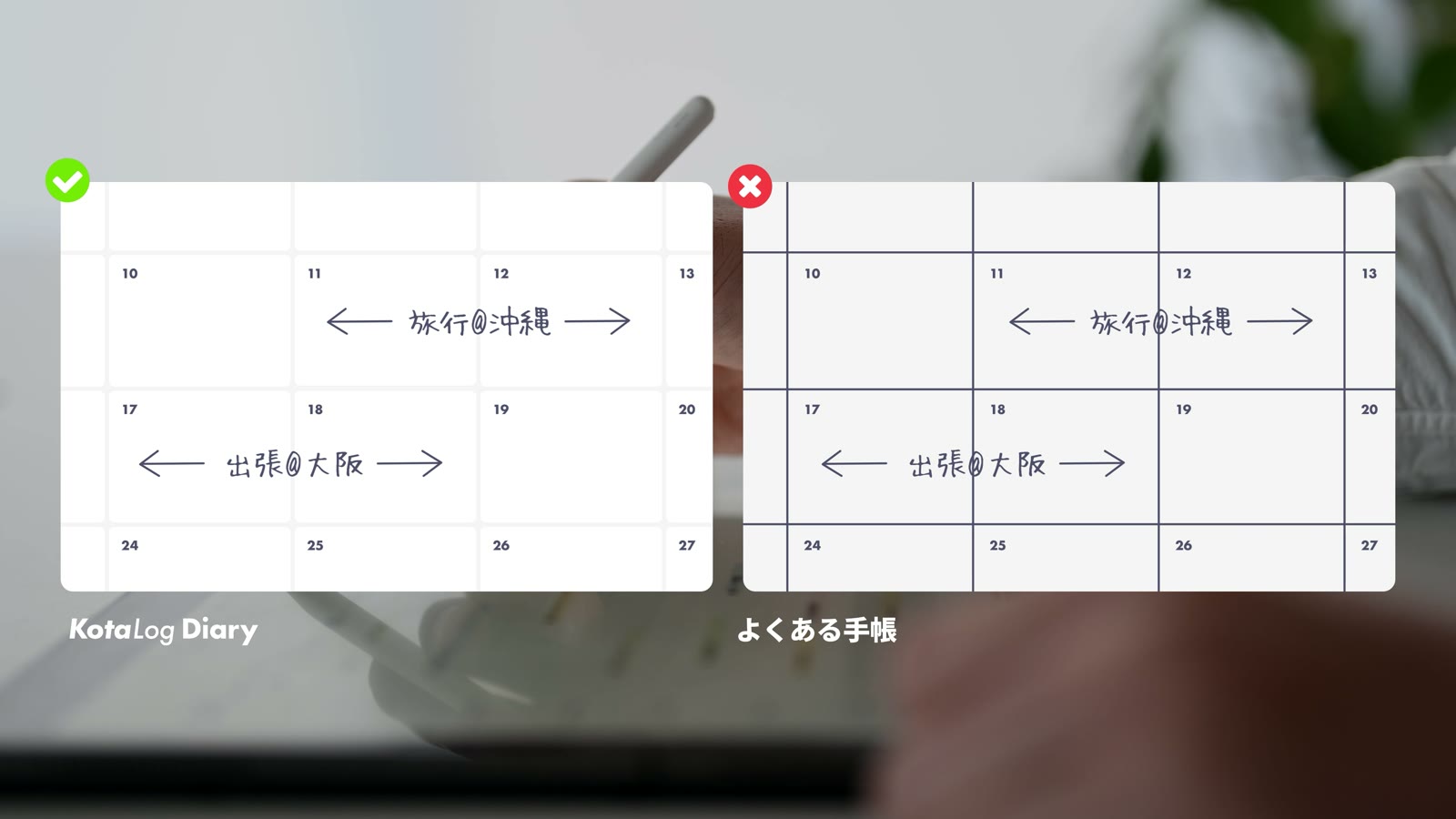
To keep pages readable even when they fill up, KotaLog Diary avoids rules wherever possible and is built from soft blocks instead. Plans that span hours or days stay easy to read and the page never looks cluttered.
Weekly page: plans and the flow of the week
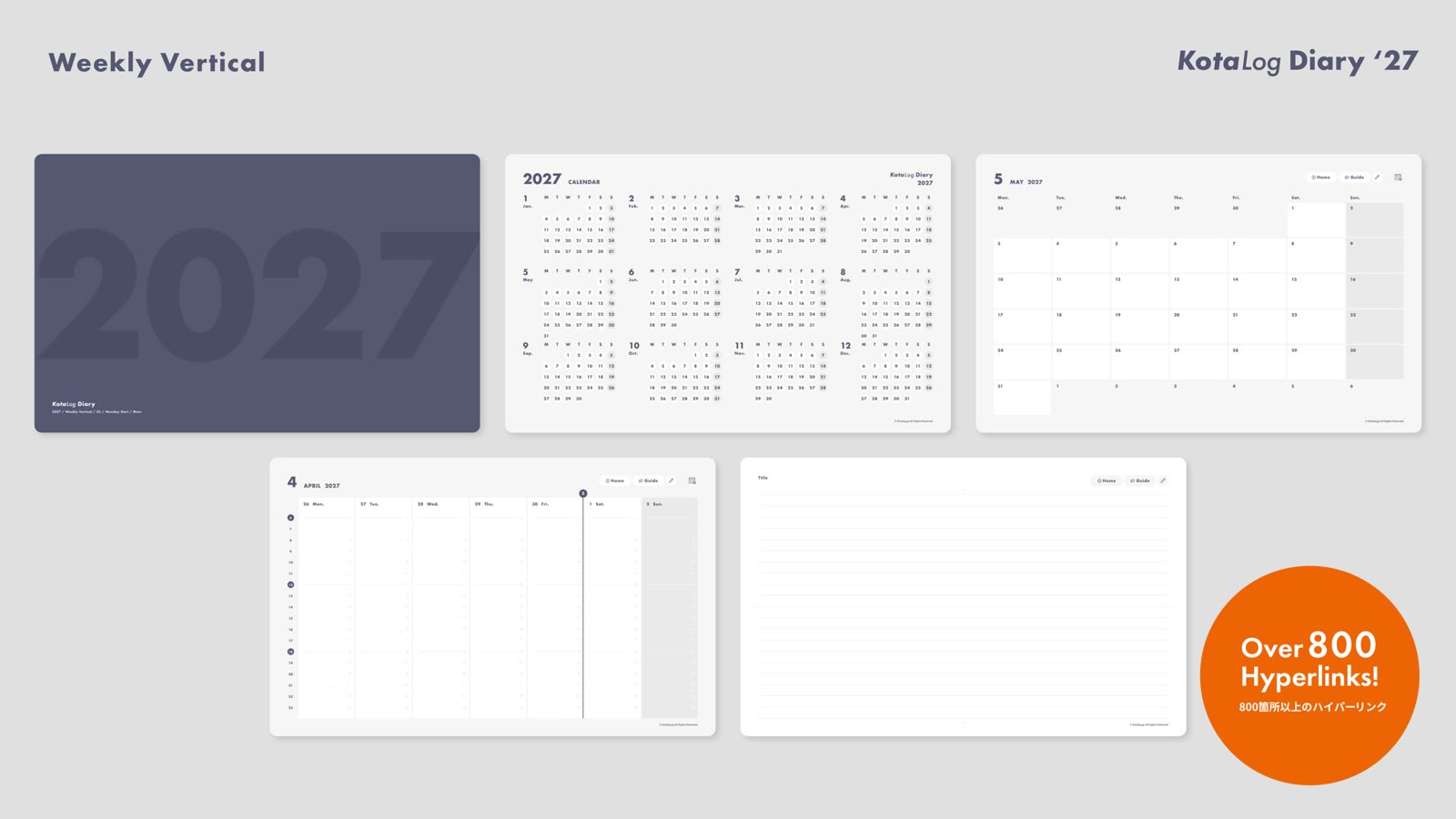
Watch in video4:10Weekly Horizontal has a timeline that runs horizontally, with a notes area on the right. It suits people who want the week’s plans next to ideas, notes and tasks. Weeks that span two months are divided by a clear date boundary.
Weekly Vertical has a timeline that runs vertically. It intentionally leaves out the notes column so you can focus on your schedule — ideal if scheduling is your main use.
Daily page: each day’s plans and records
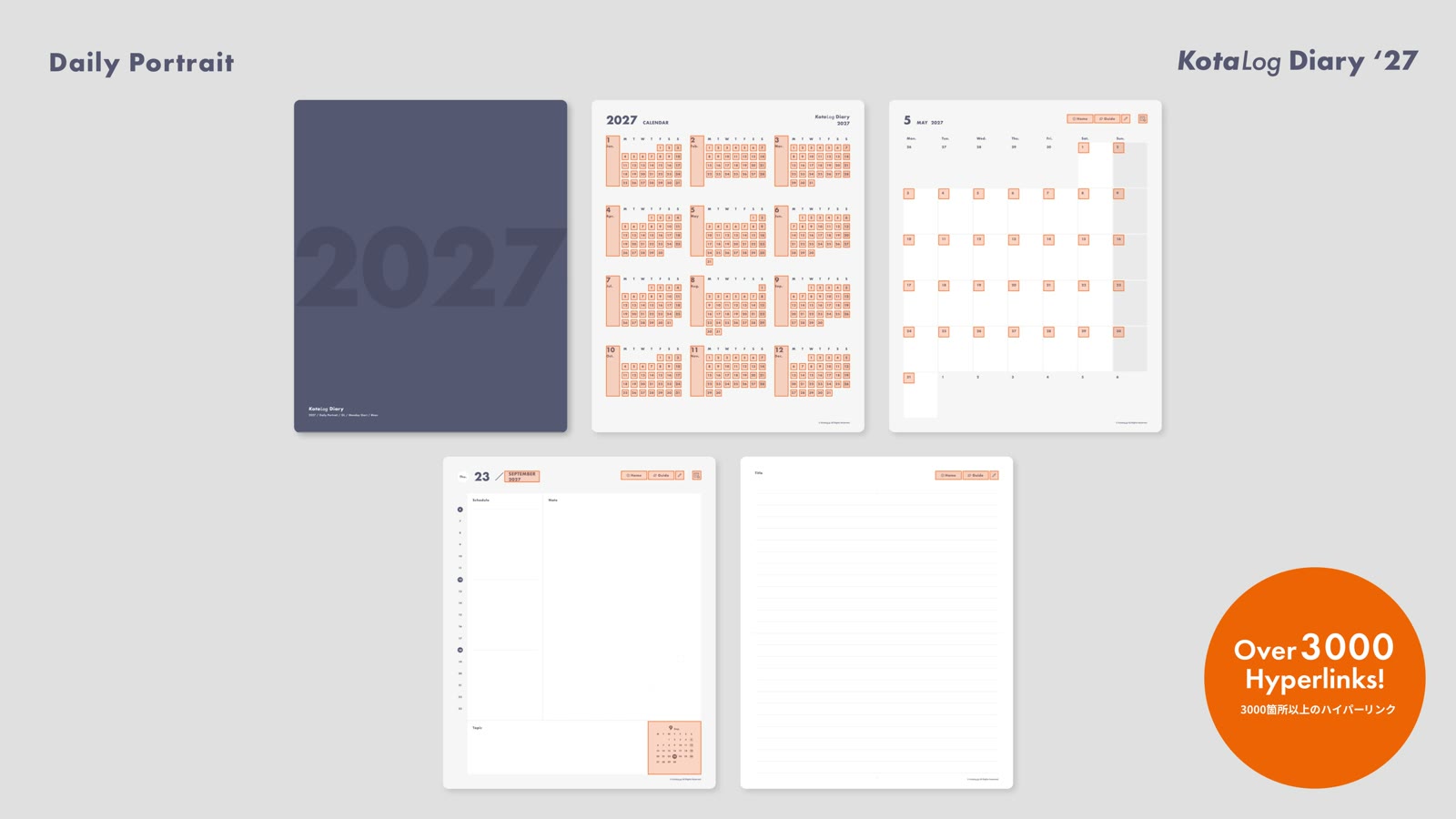
Watch in video5:17These layouts have one Daily page per day. A timeline on the left and a roomy notes area on the right make it easy to organize information tied to your schedule — meeting notes, or a record of how an event went.
The notes area has a faint dot grid, so lines stay straight and notes stay neat. Below it, the Topic area is a place to sum up what happened that day.
Daily Landscape is Daily Portrait optimized for landscape, with the same elements.
Note pages: for what doesn’t fit a date
Watch in video17:34Open Note pages from the pen icon at the top of a page. Use them for ongoing to-dos that aren’t tied to a day or week, or to park plans whose date isn’t decided yet — then move them into your schedule once it is.
They also work as regular notes for things you’ve learned or noticed. Marks at the vertical and horizontal centers let you split the page in two like a spread, or into four like a chart.
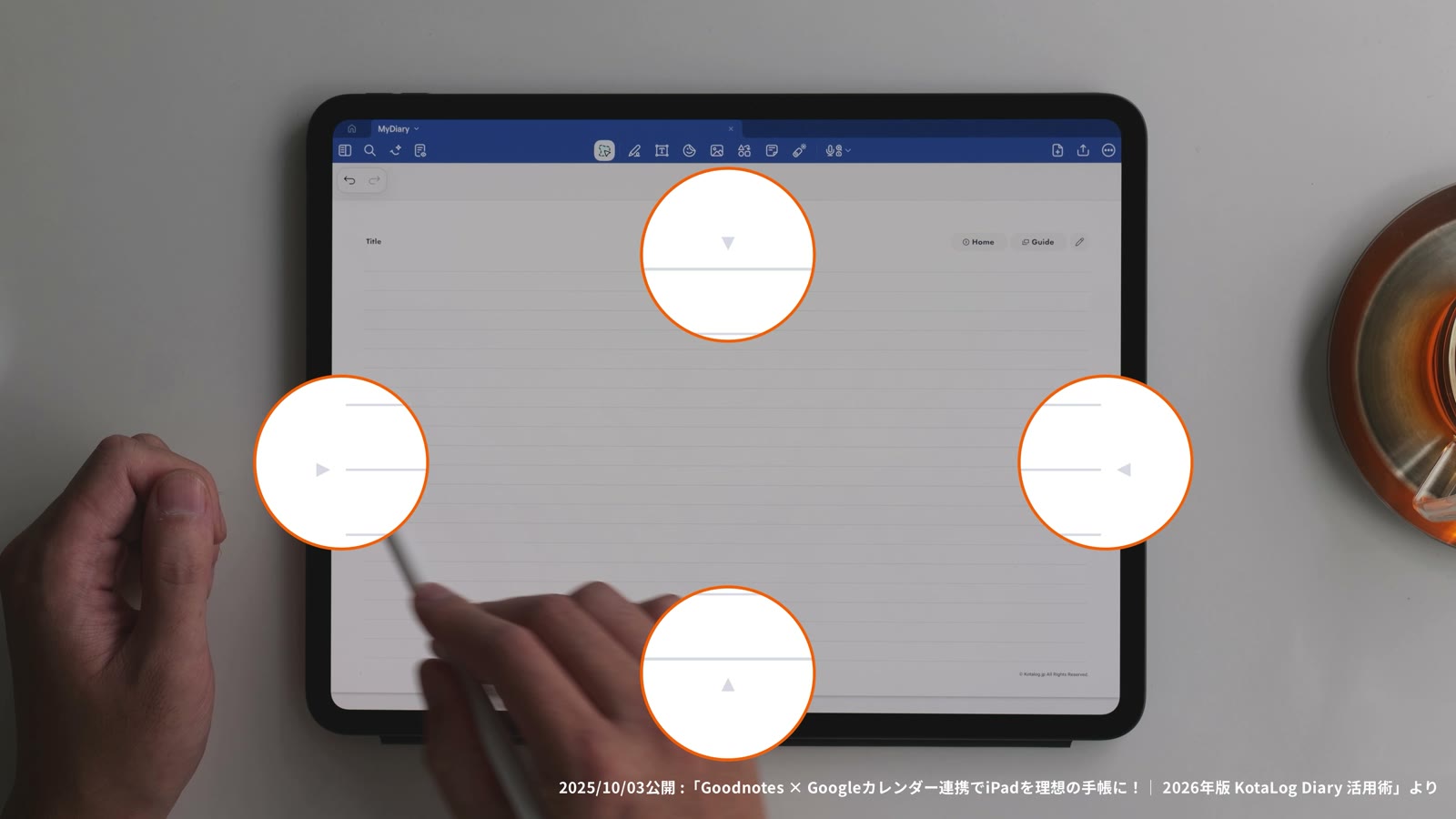
Note pages are at the end of the planner. If you need more, add pages with your app’s features.