
Moving between pages
Dates and icons on each page link to other pages in the planner, to the Guide page and to Google Calendar. Weekly layouts have more than 800 links and Daily layouts more than 3,000. Starting from the Yearly page makes it easy to get around.
From the Yearly page
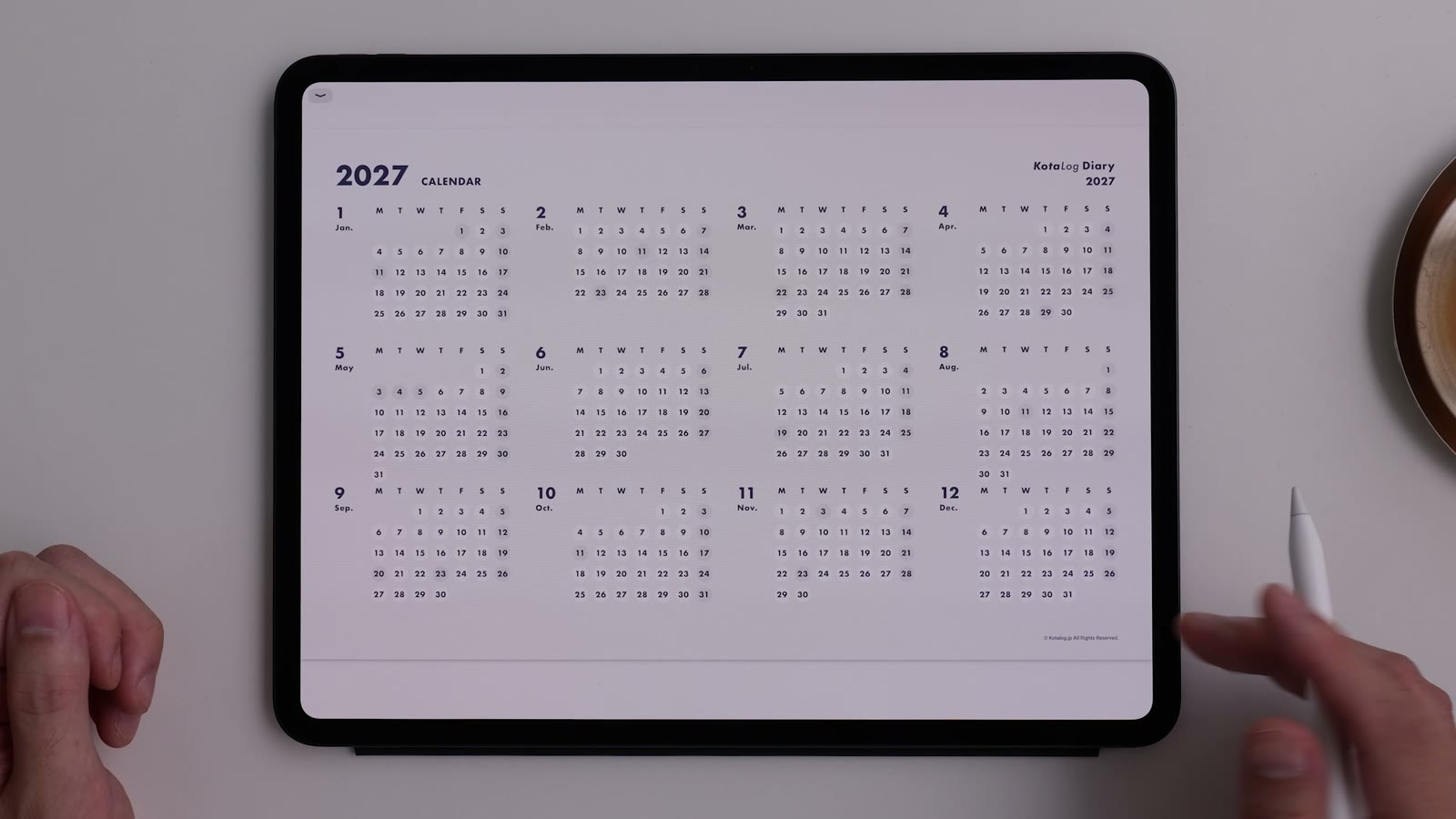
Watch in video9:19On the Yearly page, tap a month to go to its Monthly page, or tap a date to go to the page that contains it. This works the same in every layout: Weekly layouts go to the Weekly page, and Daily layouts go to the Daily page.
From the Monthly page
Watch in video10:14Tap a day to go to its Weekly page (Weekly layouts) or Daily page (Daily layouts). To return to the Monthly page from a Weekly or Daily page, tap the month label at the top left. Daily layouts can also go back from the calendar at the bottom right.
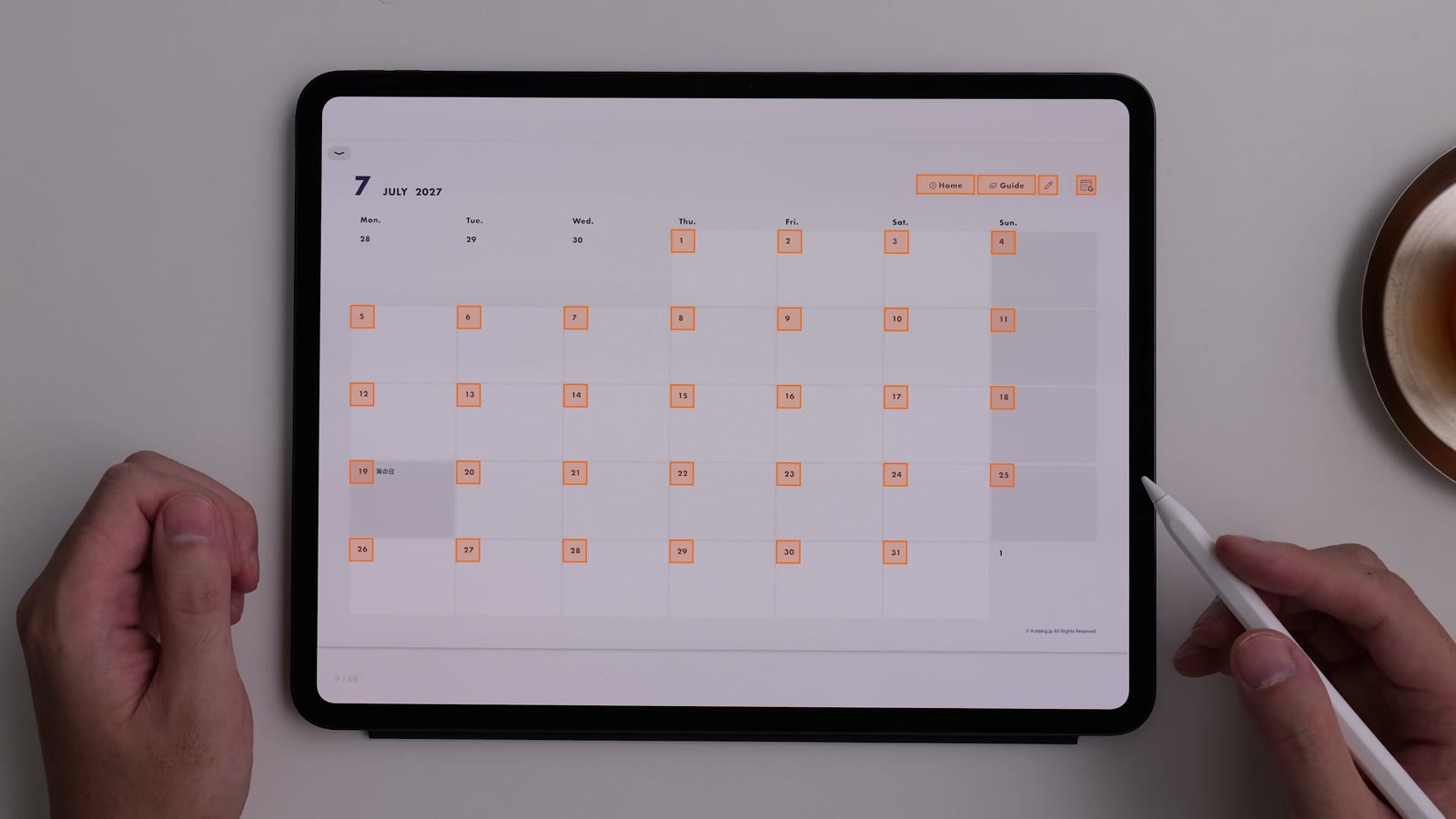
Main links on each page
| Element | Goes to |
|---|---|
| Home | Yearly page |
| Month on the Yearly page | That month’s Monthly page |
| Date on the Yearly or Monthly page | The Weekly or Daily page containing that date |
| Month label on Weekly / Daily pages | That month’s Monthly page |
| Calendar at the bottom right of Daily pages | Month and date pages |
| Pen icon | Note pages |
| Guide | The Guide page for your color |
| Google Calendar icon | Google Calendar for the same period |
Open Google Calendar
Watch in video12:49Tap the calendar icon with a “G” at the top right of a Monthly, Weekly or Daily page to open Google Calendar for the same period: the same month from a Monthly page, the same week from a Weekly page, and the same day from a Daily page.
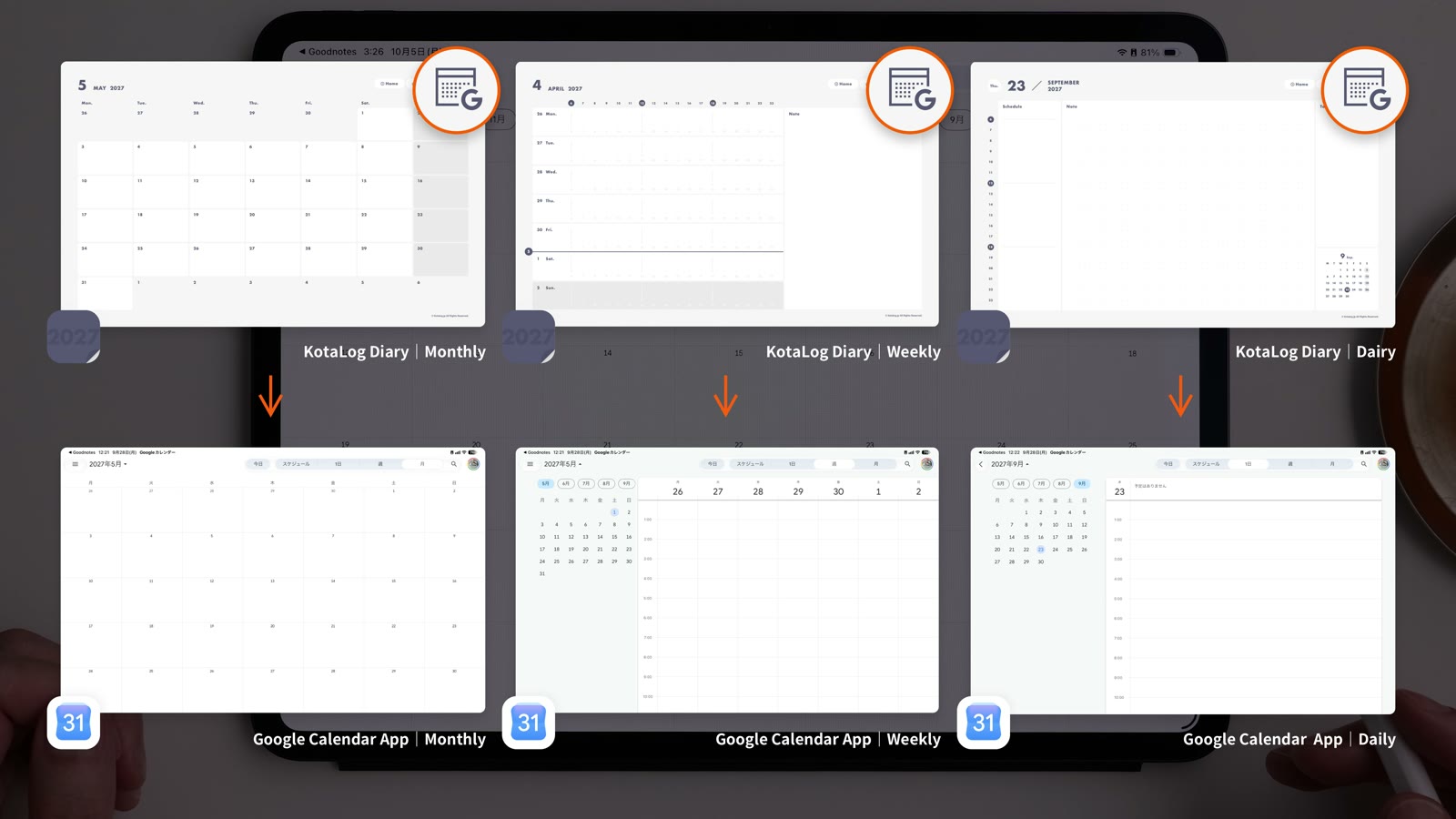
If the Google Calendar app is installed, the app opens; otherwise the web version opens. This is not a sync: plans you write in the planner are not added to Google Calendar, and calendar events are not added to the planner. For how to use them side by side, see Use it with Google Calendar in Tips.
If links don’t respond
Check how links are opened in your app. Some apps need you to switch modes between following links and writing. If the pages were imported as images, the original PDF’s links won’t work — check how the file was imported.